Counto Help & Support Center
Access guided demos and step-by-step walkthroughs across every Counto platform. Learn how to manage your ACRA compliance, IRAS tax, payroll, and daily operations.
Invoices
Create, send, and track customer invoices
Product Catalog Management
How do I manage the Product Catalog?
Maintaining an accurate item list ensures that your invoicing remains efficient and error-free. Follow these steps to add new goods or services to your system.
1
Open the Catalog
Click the Product Catalog tab from the main navigation menu to view your existing items.
Click the Product Catalog tab from the main navigation menu to view your existing items.
2
Initialise Creation
Click the blue + New Product button. A side panel titled “Create New Product” will slide out from the right.
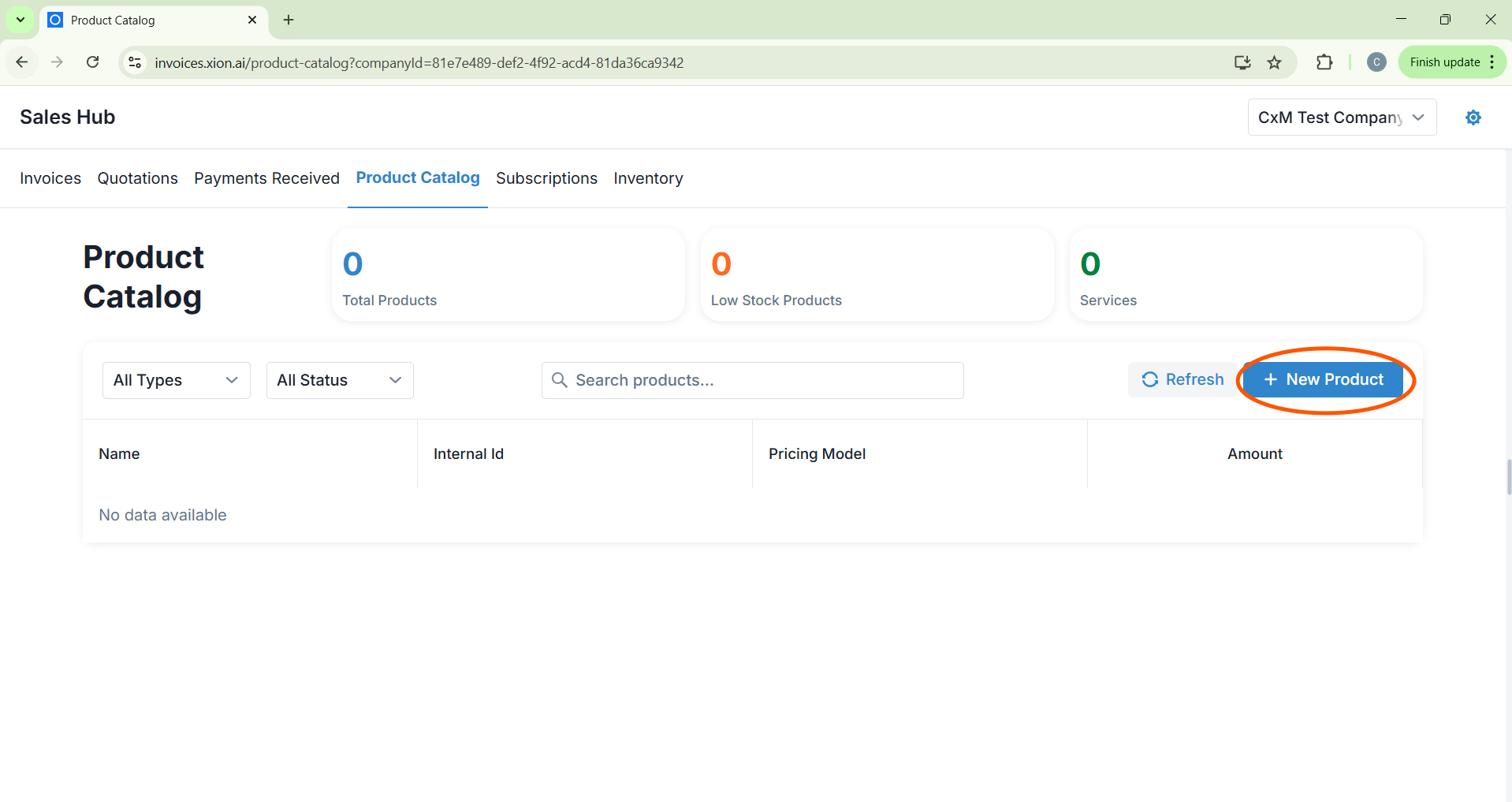
Click the blue + New Product button. A side panel titled “Create New Product” will slide out from the right.
3
Define Item Identity
Enter the Name of the product and assign a unique Internal ID / SKU for tracking purposes.
Enter the Name of the product and assign a unique Internal ID / SKU for tracking purposes.
4
Configure Pricing & Tax
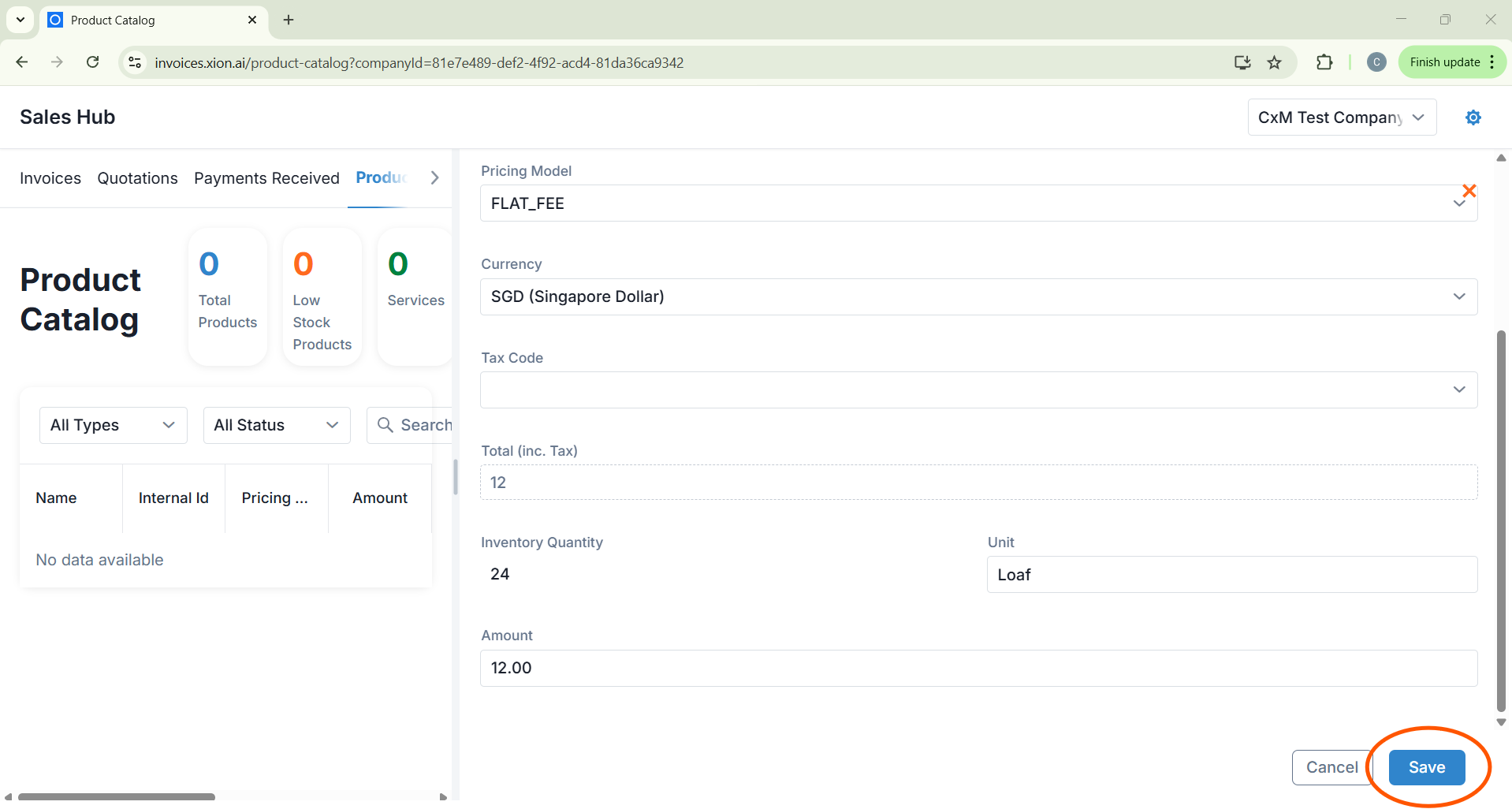
Select your Pricing Model and Tax Code from the dropdowns, then enter the Total (inc. Tax).
Select your Pricing Model and Tax Code from the dropdowns, then enter the Total (inc. Tax).
5
Set Inventory Units
Input the current Inventory Quantity and define the Unit of measurement (e.g., Loaf, Box, Hour).
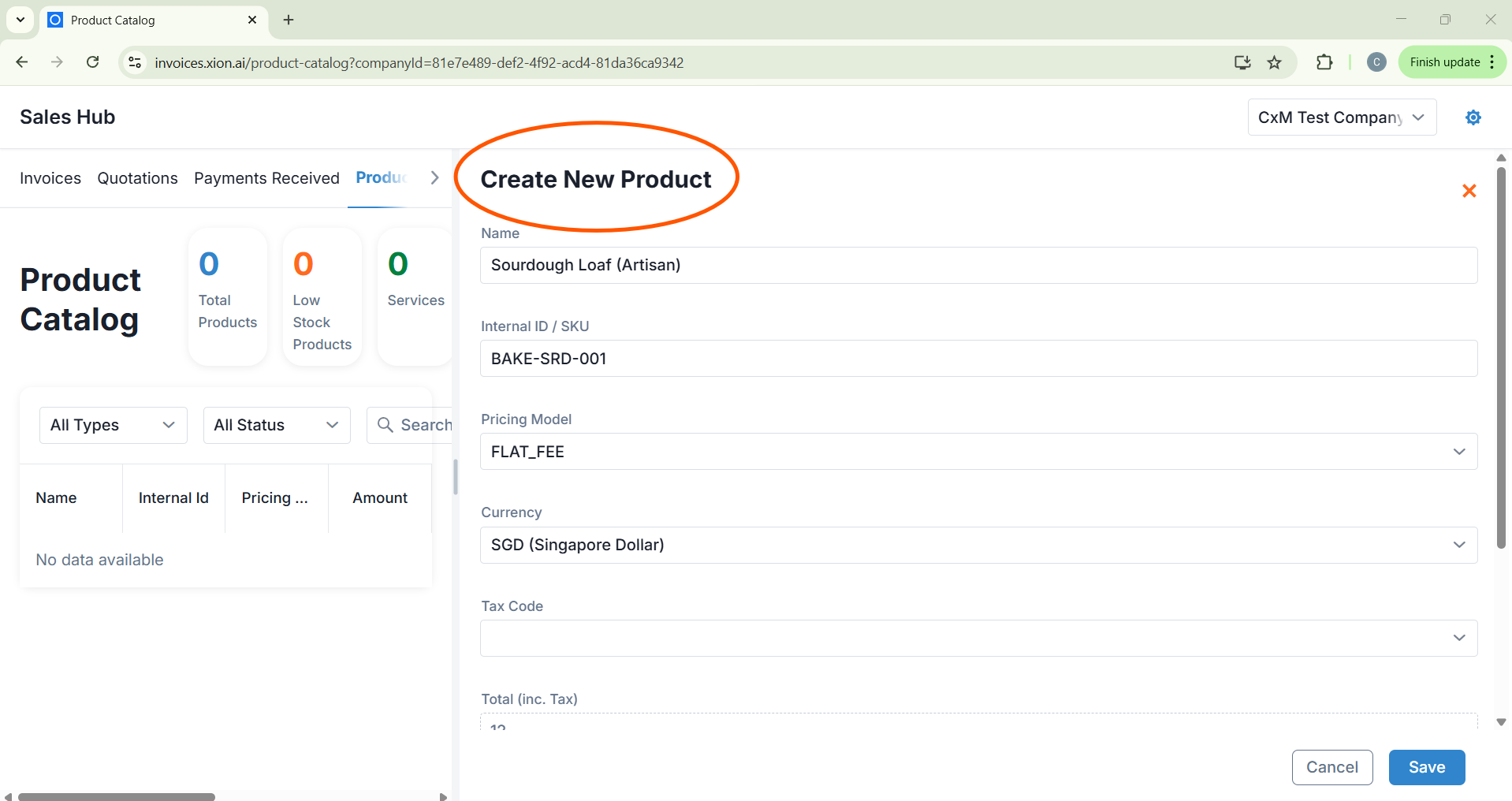
Input the current Inventory Quantity and define the Unit of measurement (e.g., Loaf, Box, Hour).
6
Finalise & Verify
- Click the blue Save button at the bottom of the panel.
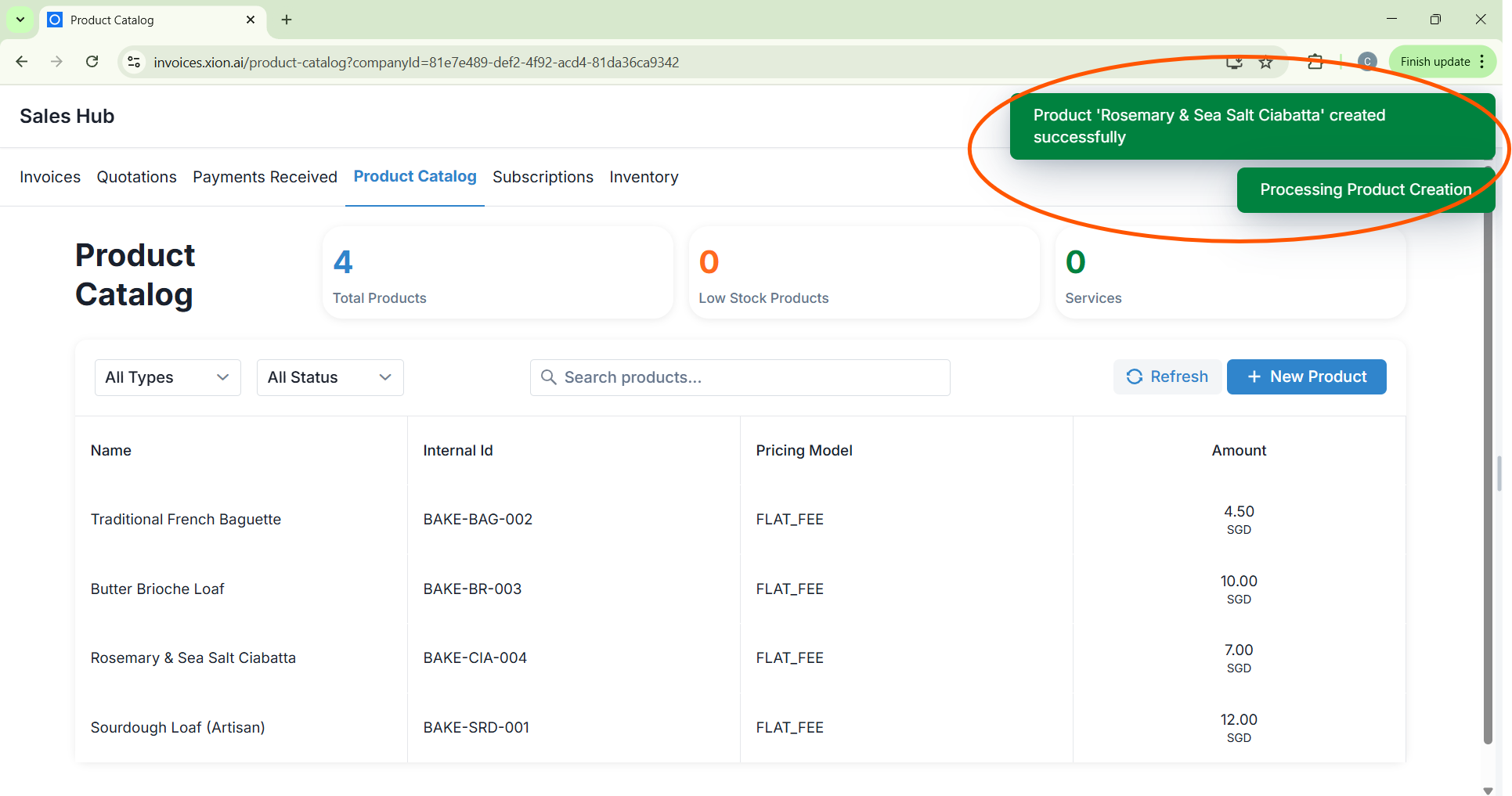
- A success notification will appear at the top of the screen confirming the addition.
- The Product Catalog list will automatically update with the new entry.