Counto Help & Support Center
Access guided demos and step-by-step walkthroughs across every Counto platform. Learn how to manage your ACRA compliance, IRAS tax, payroll, and daily operations.
Invoices
Create, send, and track customer invoices
Managing Sent Invoices & Payments
How do I manage sent invoices and record payments?
Once an invoice is approved, you can easily distribute it to your clients and track the fulfilment of the payment within the same ledger.
1
Locate Document
Find the specific record within the Invoices ledger. Use the status filters (Draft, Approved, Paid) to narrow down your search if necessary.
Find the specific record within the Invoices ledger. Use the status filters (Draft, Approved, Paid) to narrow down your search if necessary.
2
Use Hover Actions
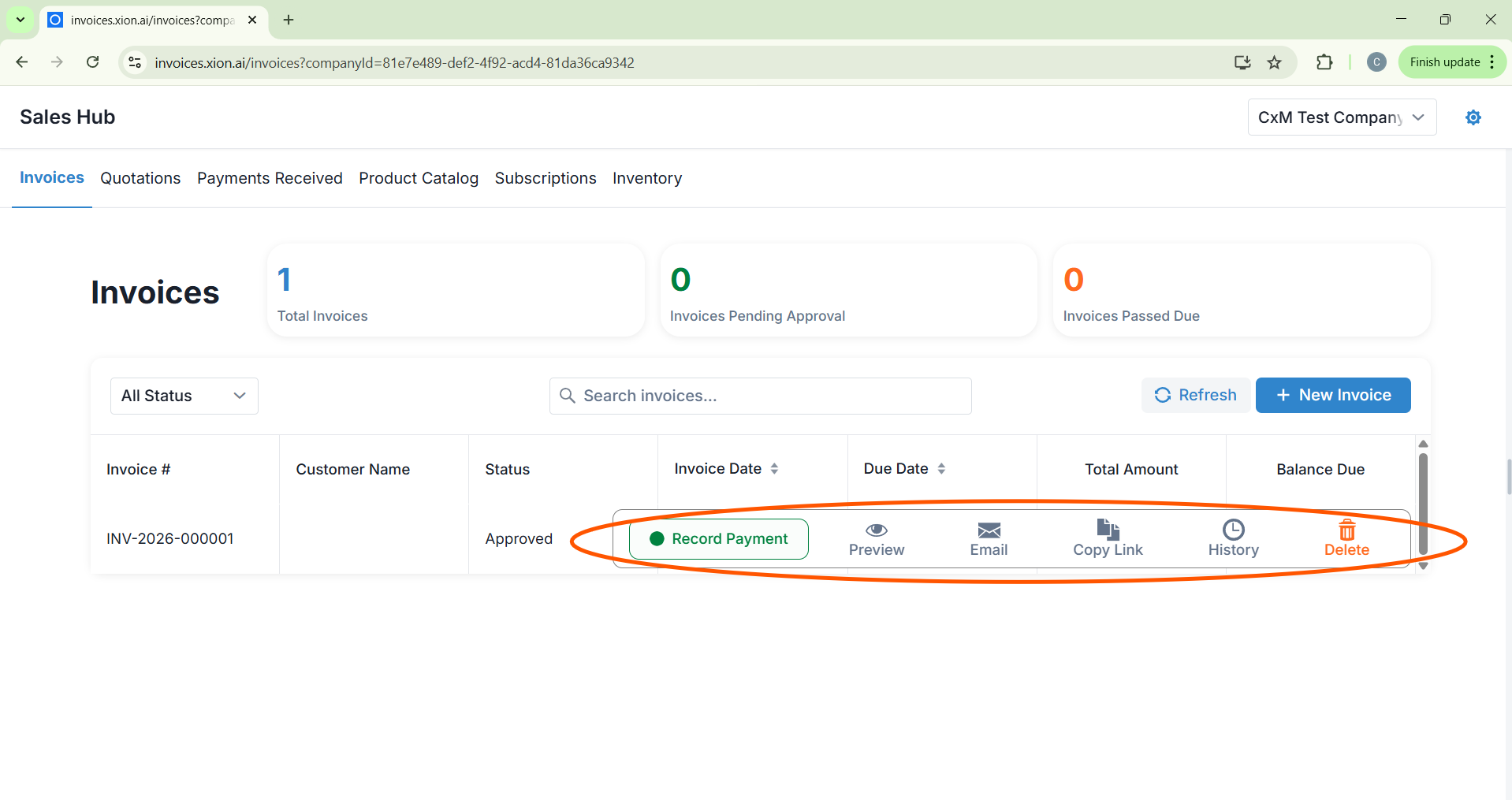
Hover over a specific row to reveal the quick-action menu:
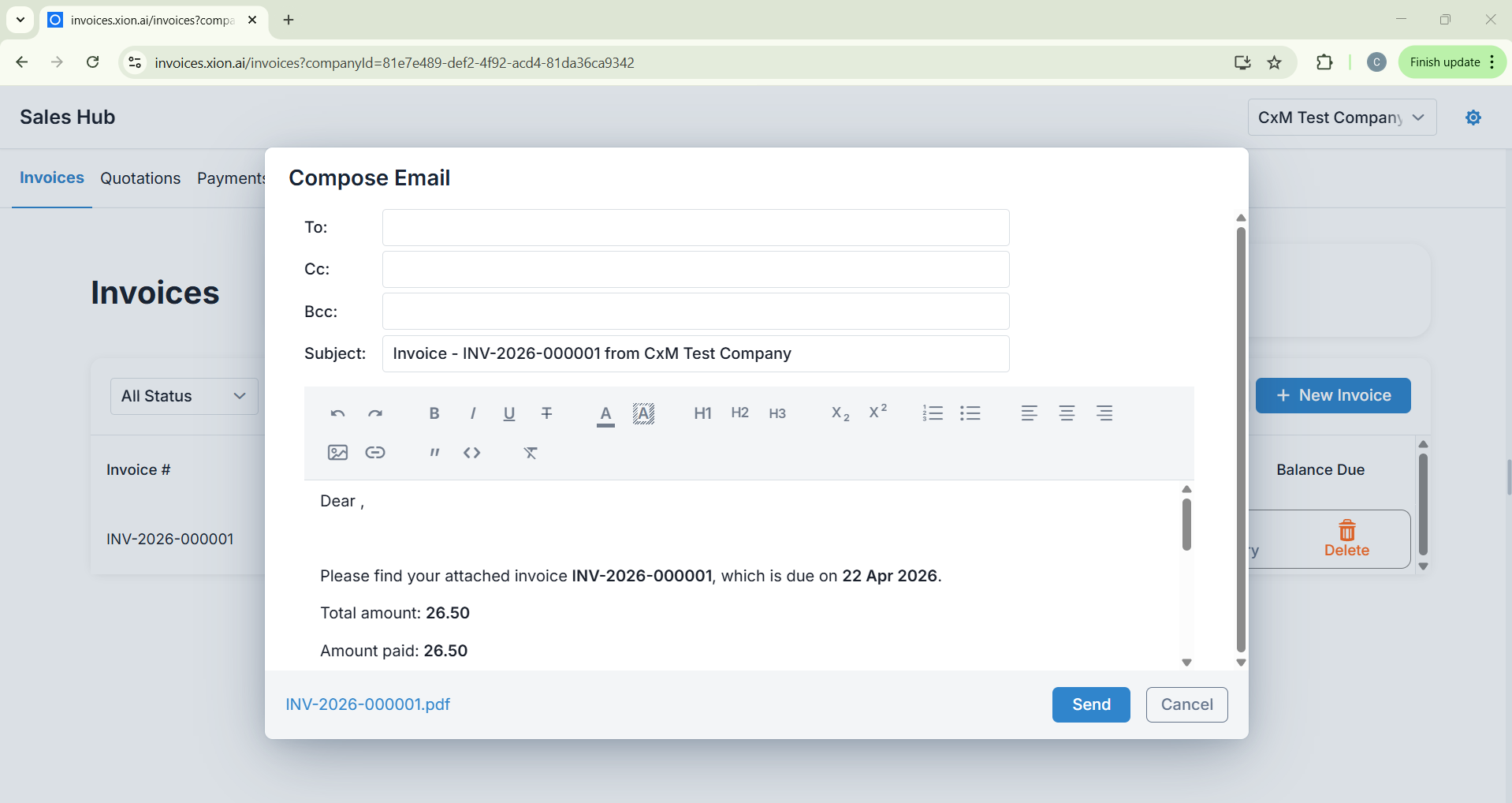
- Email: Opens the “Send Invoice” panel to enter the Recipient Email, Subject, and Message.
- Copy Link: Generates a direct file link to download the document.
- History: Access the Audit Log and Version History to track changes and approvals.
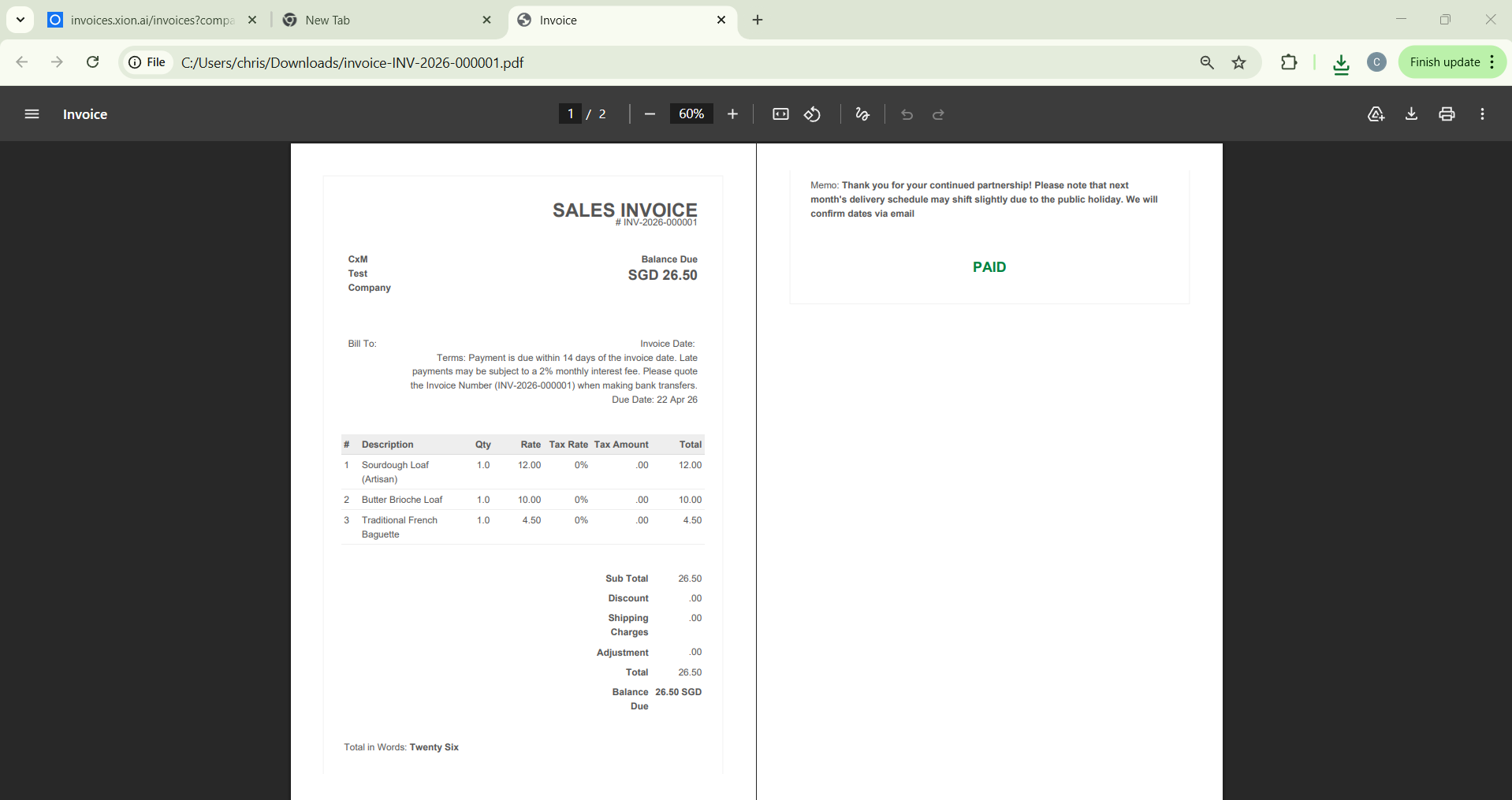
- Preview & Delete: View the PDF document or remove the record from the system.
3
Record a Payment
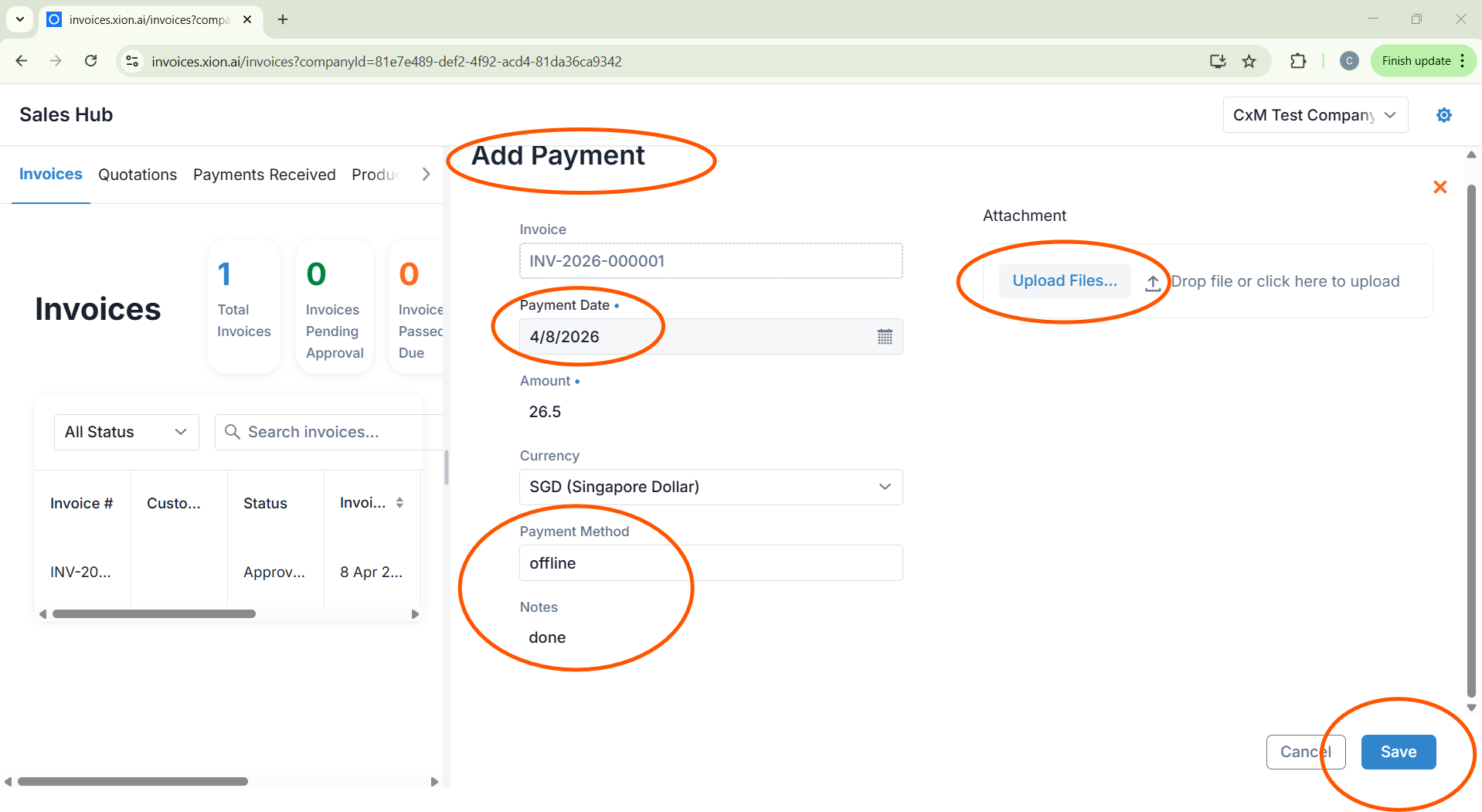
Click Record Payment from the hover menu to open the “Add Payment” side panel.
- Select the Payment Date and Payment Method.
- Review the Amount Received and account for any Bank Charges.
- Click Save to finalise the transaction.
4
Finalise & Verify
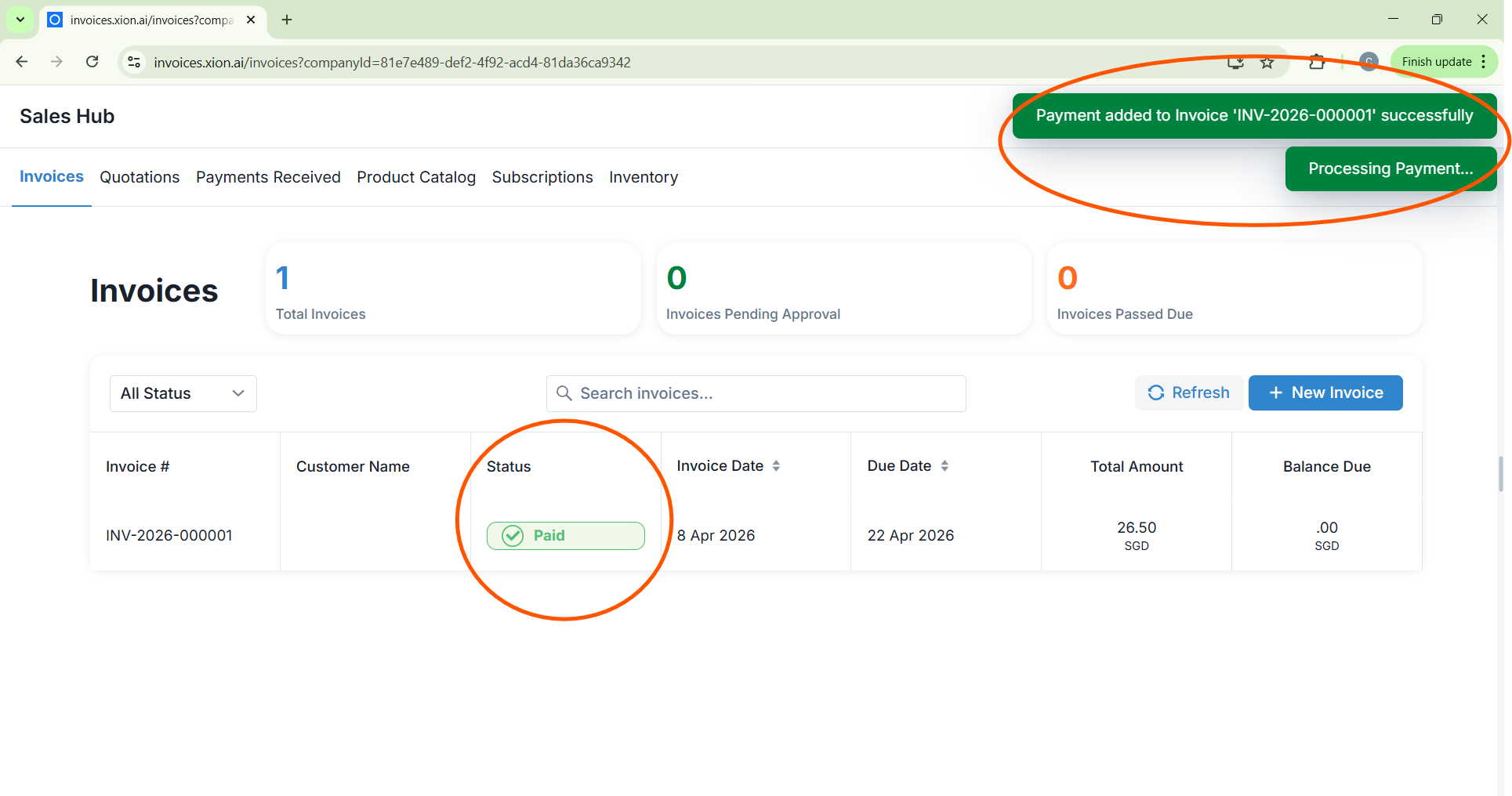
A “Payment Recorded Successfully” message will appear, and the status will automatically update to Paid. You can then confirm the entry in the Payments Received tab.