Counto Help & Support Center
Access guided demos and step-by-step walkthroughs across every Counto platform. Learn how to manage your ACRA compliance, IRAS tax, payroll, and daily operations.

Invoices
Create, send, and track customer invoices
Quotations Management
How do I create a quotation?
Creating a quotation allows you to provide clients with professional cost estimates before finalising an invoice. Follow these steps to generate a new proposal.
1
Initiate
Go to the Quotations tab and click the blue + New Quotation button. A side panel titled “New Quotation” will appear.
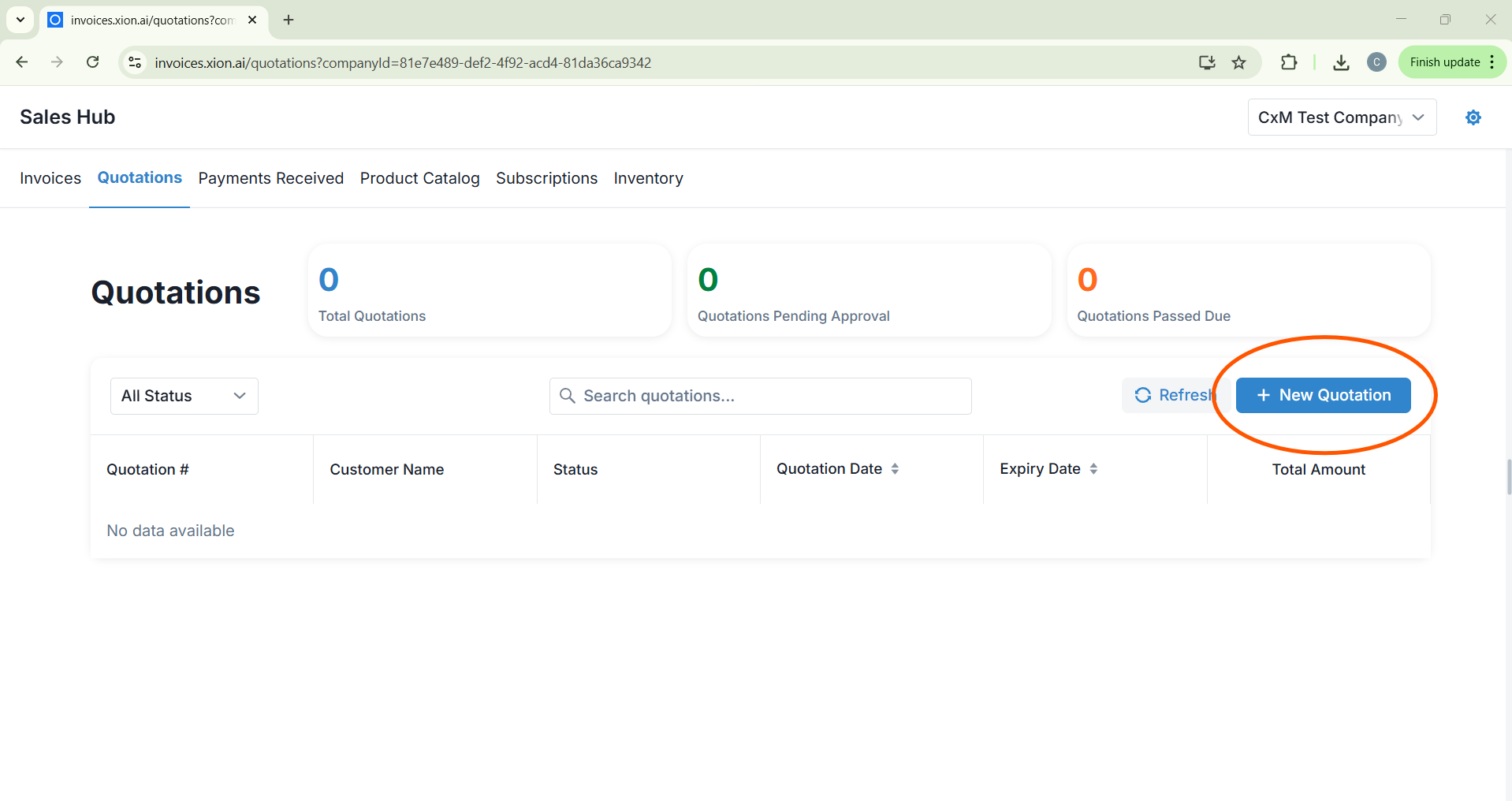
Go to the Quotations tab and click the blue + New Quotation button. A side panel titled “New Quotation” will appear.
2
Customer & Numbering
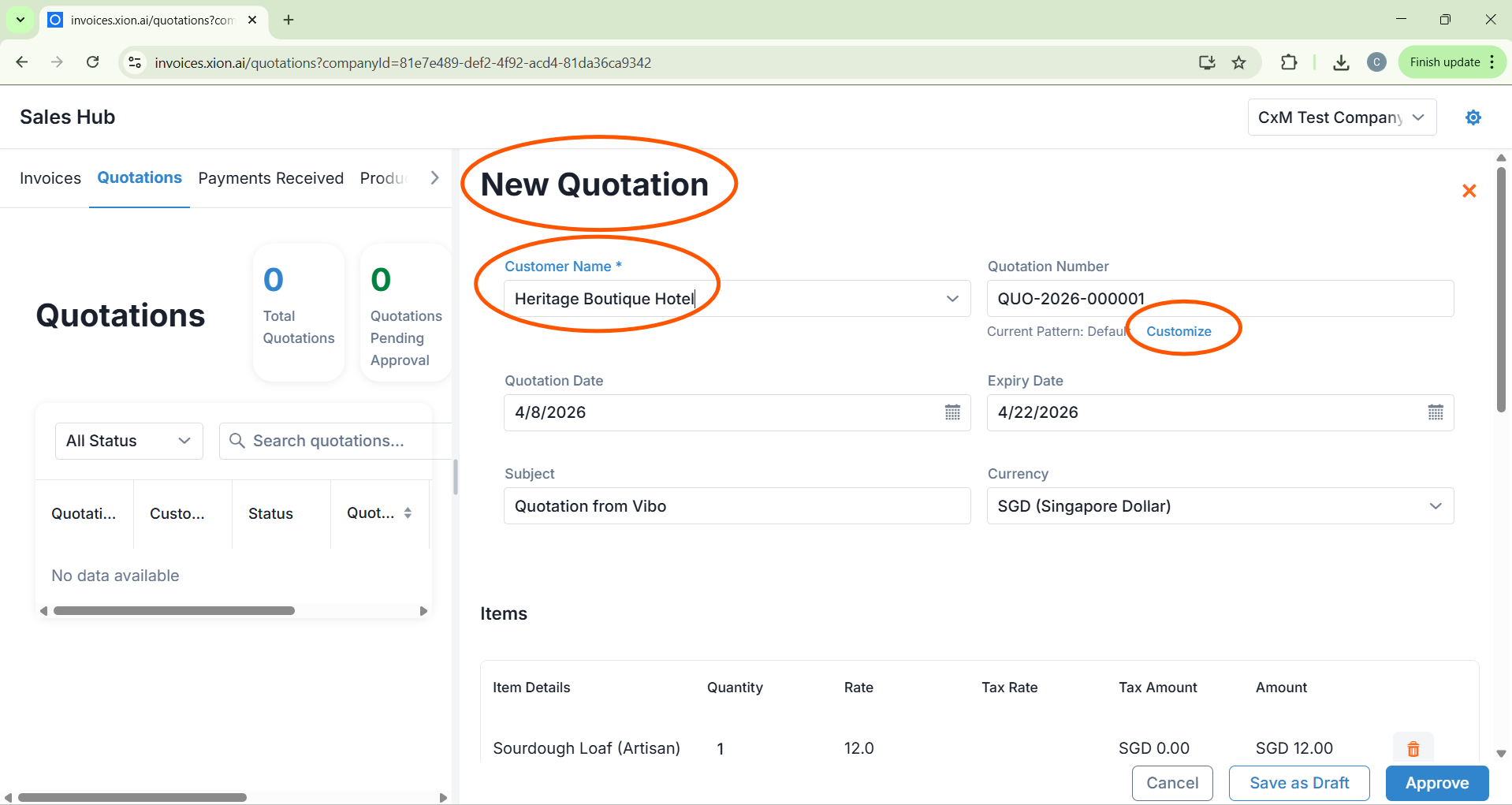
- Select Customer: Choose the client from the Customer Name dropdown menu.
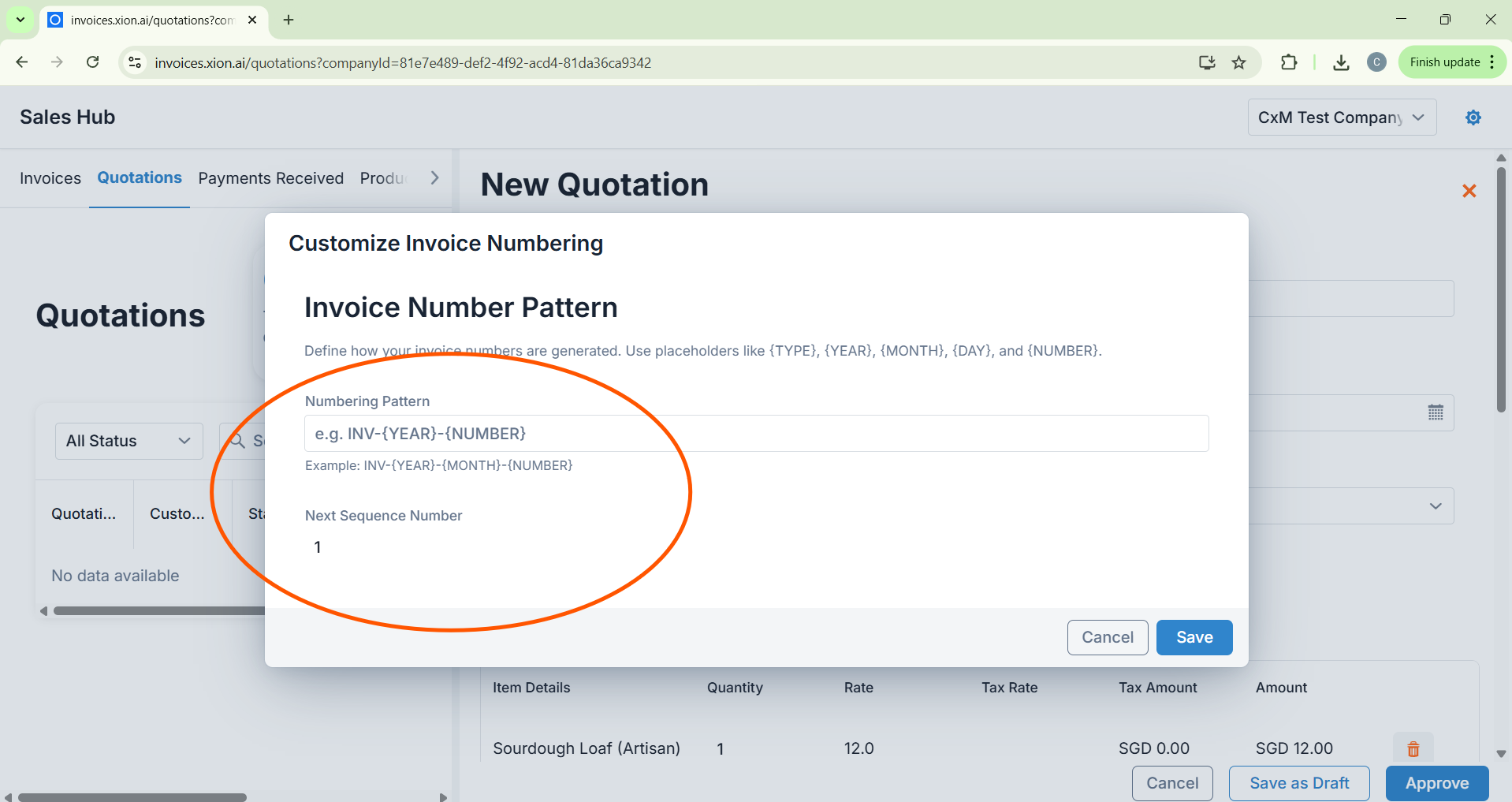
- Configure Numbering: Use the default number or click Customise to define a pattern (e.g., QTN-{YEAR}-{NUMBER}) and set the Next Number.
3
Dates, Subject & Items
- Details: Input the Quotation Date, Expiry Date, and a descriptive Subject.
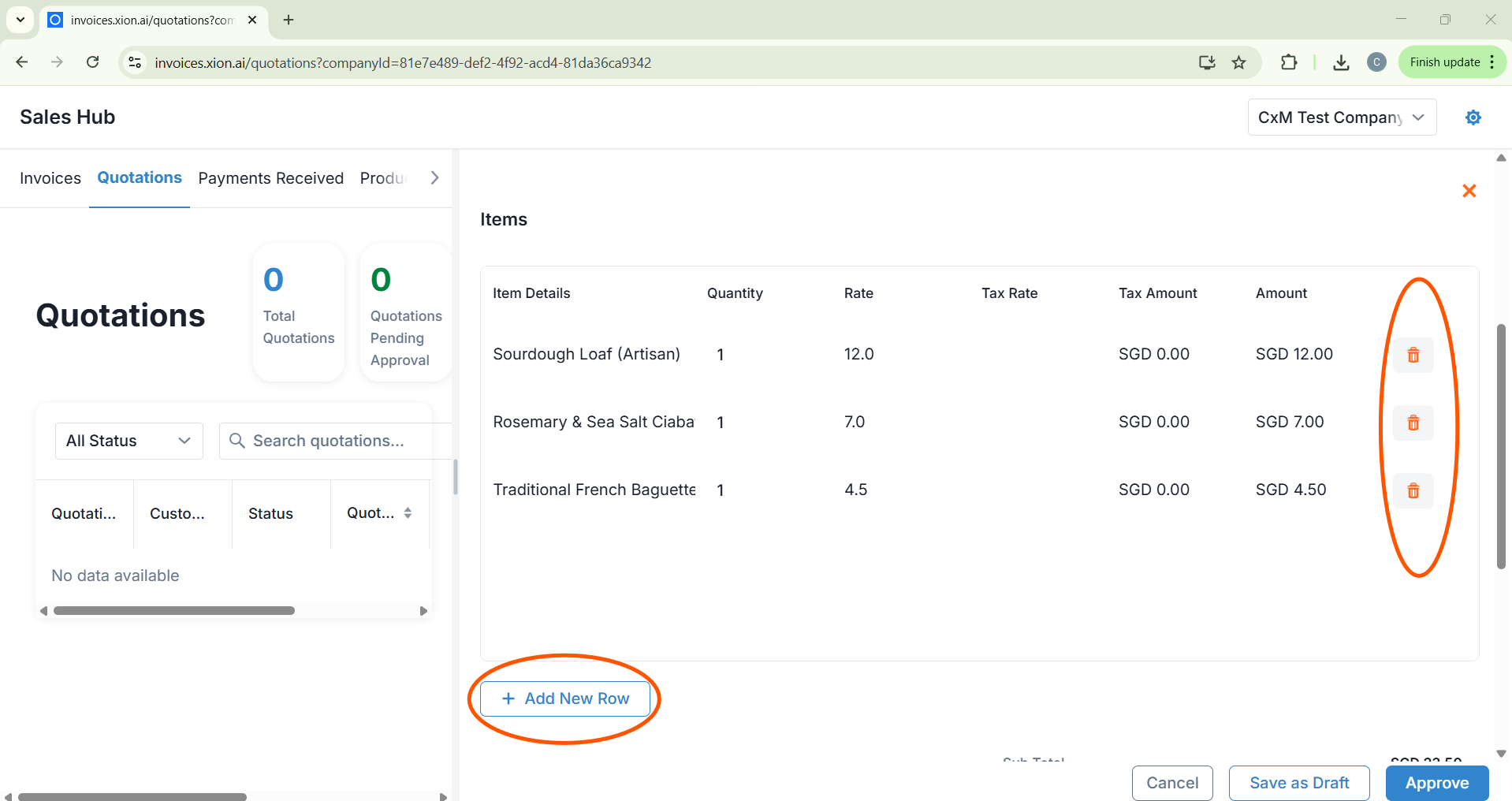
- Add Items: Click + Add New Row to search and add items directly from your Product Catalogue.
- Edit Rows: Adjust the Quantity, Rate, or Tax Rate per line, or use the Trash Icon to delete rows.
4
Finalise Details
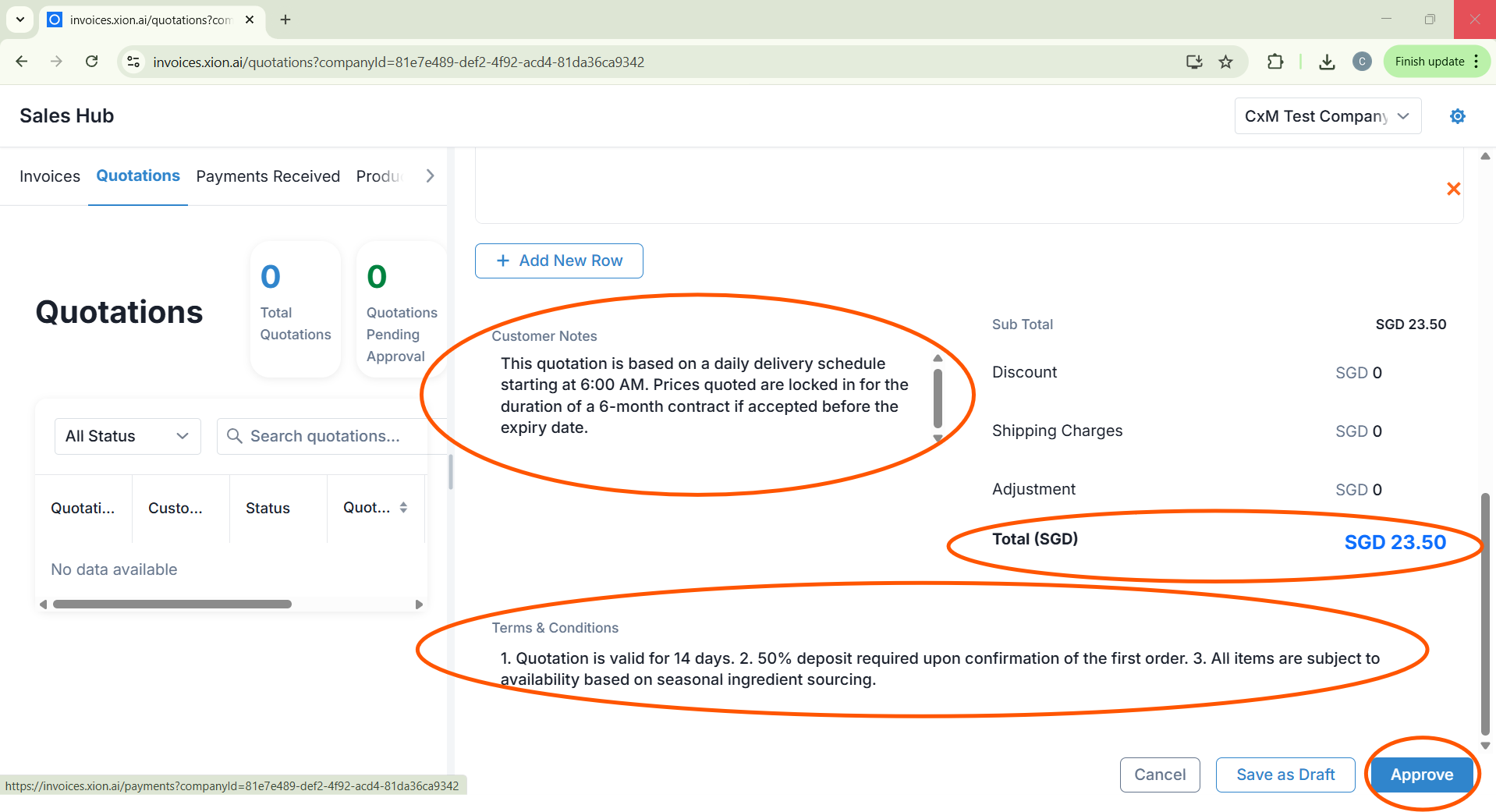
- Notes & T&Cs: Add specific project notes in Customer Notes and input the validity period in Terms & Conditions.
- Calculations: Review the Sub Total, Discount, Shipping, and Adjustments.
- Attachments: Drag and drop or upload relevant project files or briefs.
5
Submit & Verify
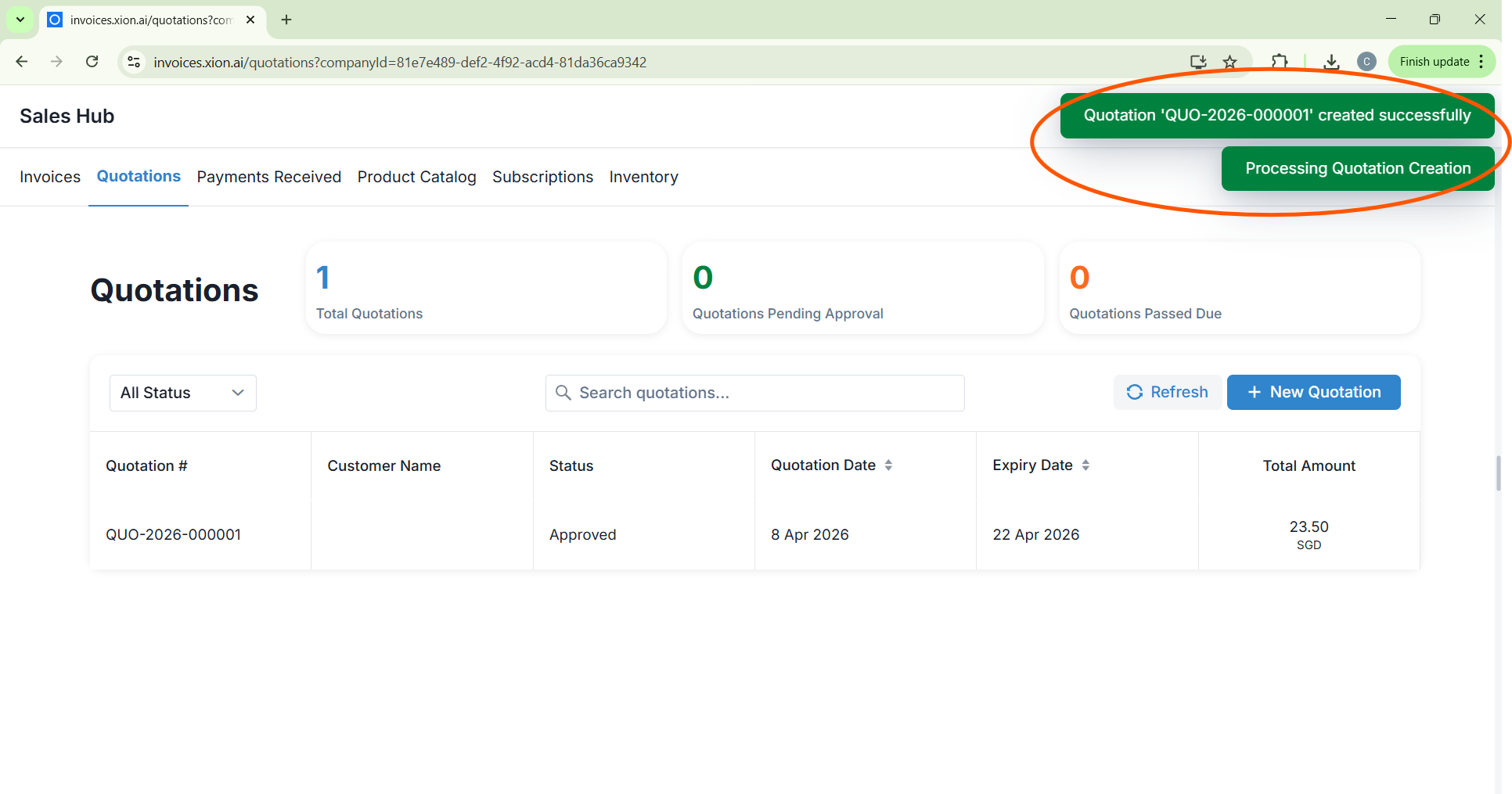
Click Approve. Once saved, a “Quotation created successfully” notification will appear, and the document will show in your ledger.
Click Approve. Once saved, a “Quotation created successfully” notification will appear, and the document will show in your ledger.