Counto Help & Support Center
Access guided demos and step-by-step walkthroughs across every Counto platform. Learn how to manage your ACRA compliance, IRAS tax, payroll, and daily operations.

Payroll
Manage employee data and run monthly payroll
Navigating the Payroll Workspace
How do I understand and navigate the interface?
The Payroll dashboard is designed to help you manage salaries and leave with ease. Use this guide to get familiar with the main areas of the interface.
1
Main Navigation & Menus
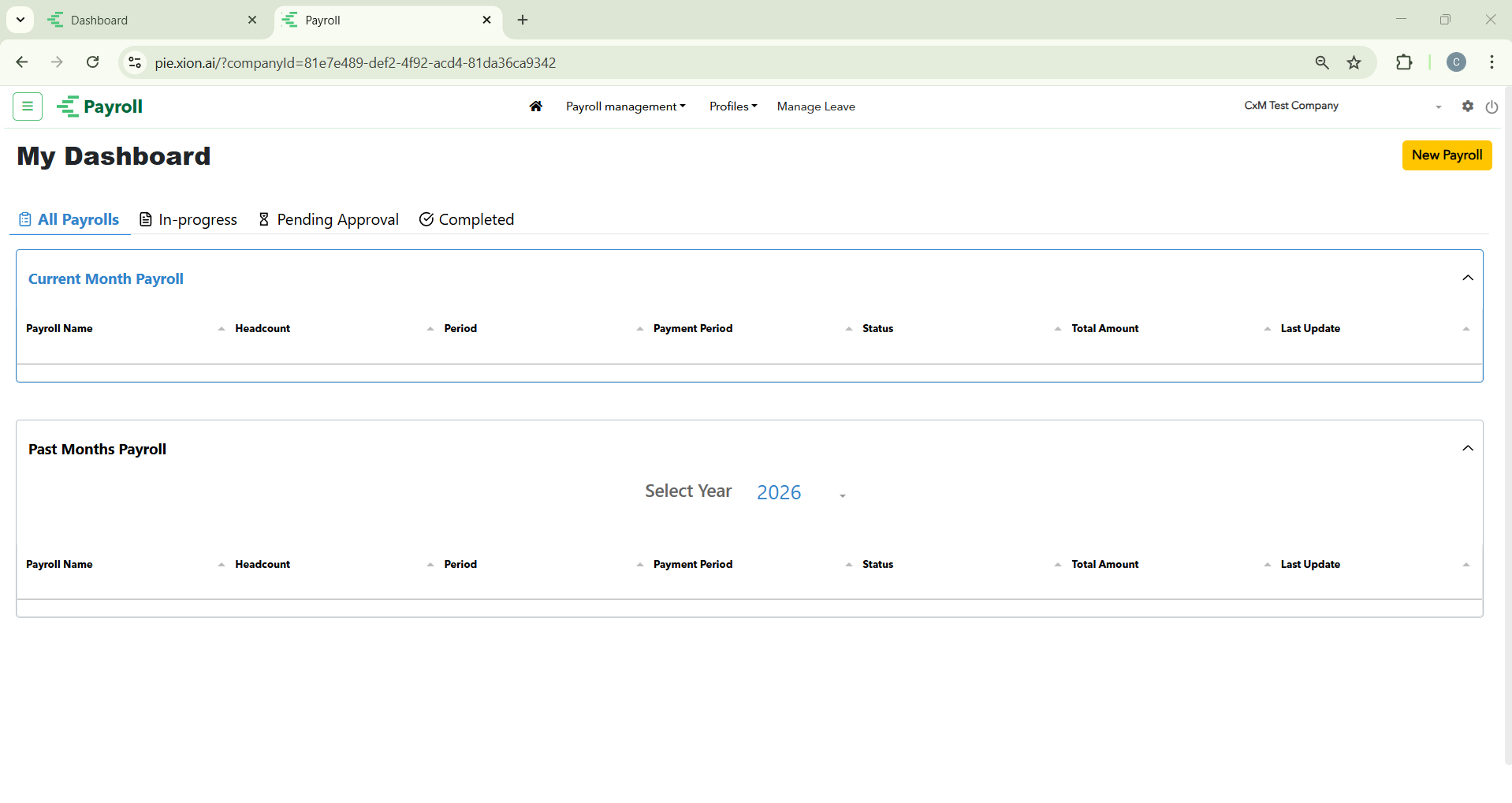
Use the top menu bar to jump between different parts of the system:
Use the top menu bar to jump between different parts of the system:
- Company Selector: Your active company name is shown in the top right. If you manage multiple businesses, you can switch between them here.
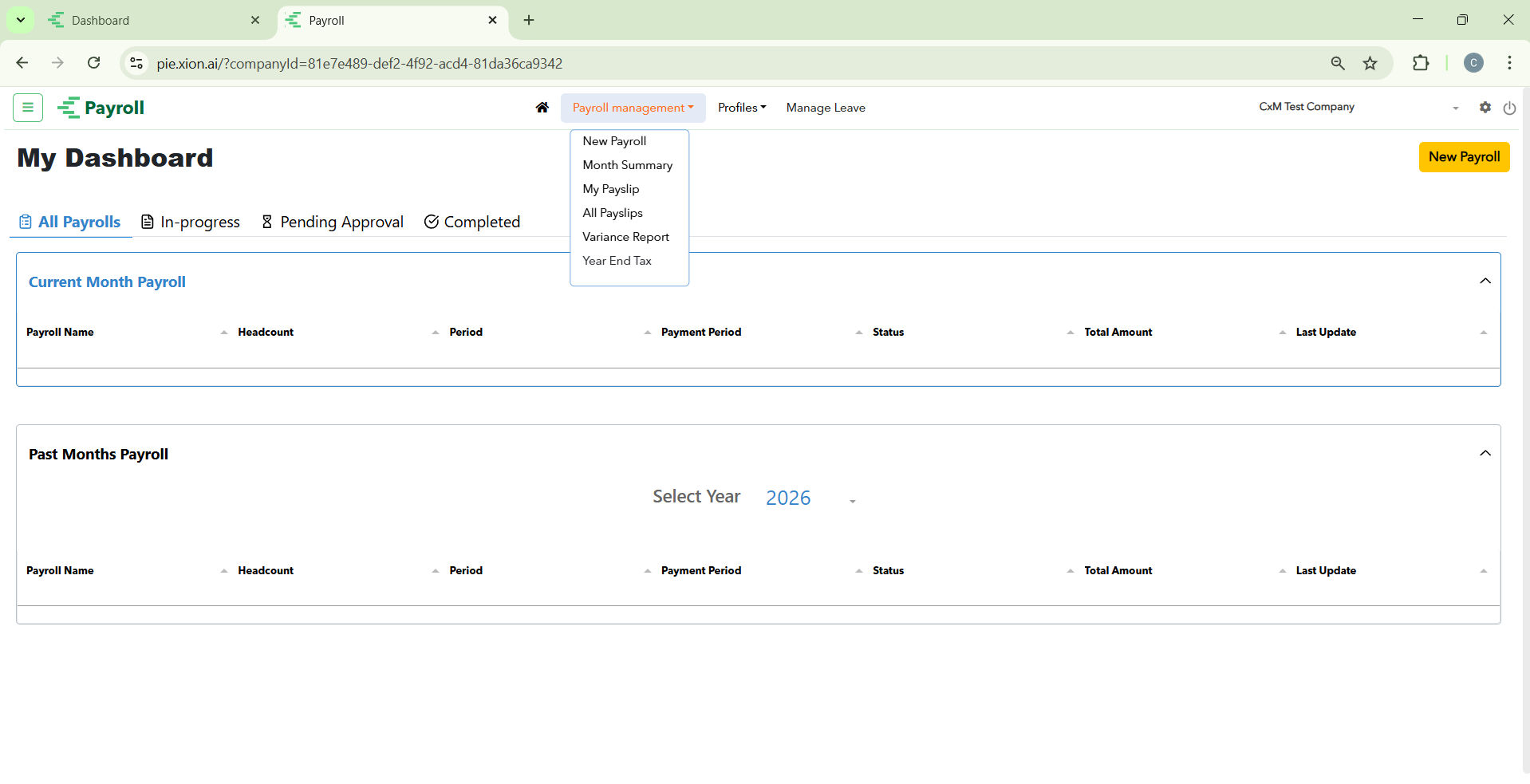
- Payroll Management: This dropdown contains your day-to-day tools like Month Summary, Payslips, Variance Reports, and Year-End Tax forms.
- Profiles: This is where you go to update Company information or manage your Employee list.
- Manage Leave: Click this to transition to the Leave module, your central hub for:
- Viewing employee leave balances.
- Reviewing and approving pending leave requests.
- Setting up leave policies and holiday calendars.
2
Tracking Your Payroll (Status Tabs)
The dashboard uses simple tabs to show you exactly where your payroll stands in the process:
The dashboard uses simple tabs to show you exactly where your payroll stands in the process:
- All Payrolls: A full list of every payroll run you have ever done.
- In-progress: Drafts that you are currently working on but haven’t finished yet.
- Pending Approval: Payrolls that are finished but waiting for a manager’s final “OK.”
- Completed: Your archive of finalised payrolls that have been fully processed.
3
Action Buttons & Icons
Quickly start tasks or adjust settings using these controls:
Quickly start tasks or adjust settings using these controls:
- New Payroll Button: Look for the bright yellow button in the top right whenever you are ready to start a new month’s pay cycle.
- Settings (Gear Icon): Click this to invite new team members to the app or change what they are allowed to see.
- Logout (Power Icon): Click this to safely sign out of your account.
4
How the Dashboard is Organised
The dashboard prioritises your most important tasks. Current Tasks are kept at the top of the page, while History and older records are tucked neatly into the “Past Months” section below, so they don’t clutter your view.
The dashboard prioritises your most important tasks. Current Tasks are kept at the top of the page, while History and older records are tucked neatly into the “Past Months” section below, so they don’t clutter your view.