Counto Help & Support Center
Access guided demos and step-by-step walkthroughs across every Counto platform. Learn how to manage your ACRA compliance, IRAS tax, payroll, and daily operations.

Manage Leave
How do I manage employee time-off and leave policies?
The Leave Management workspace allows you to oversee all aspects of employee absence, from setting global policies to approving individual requests.
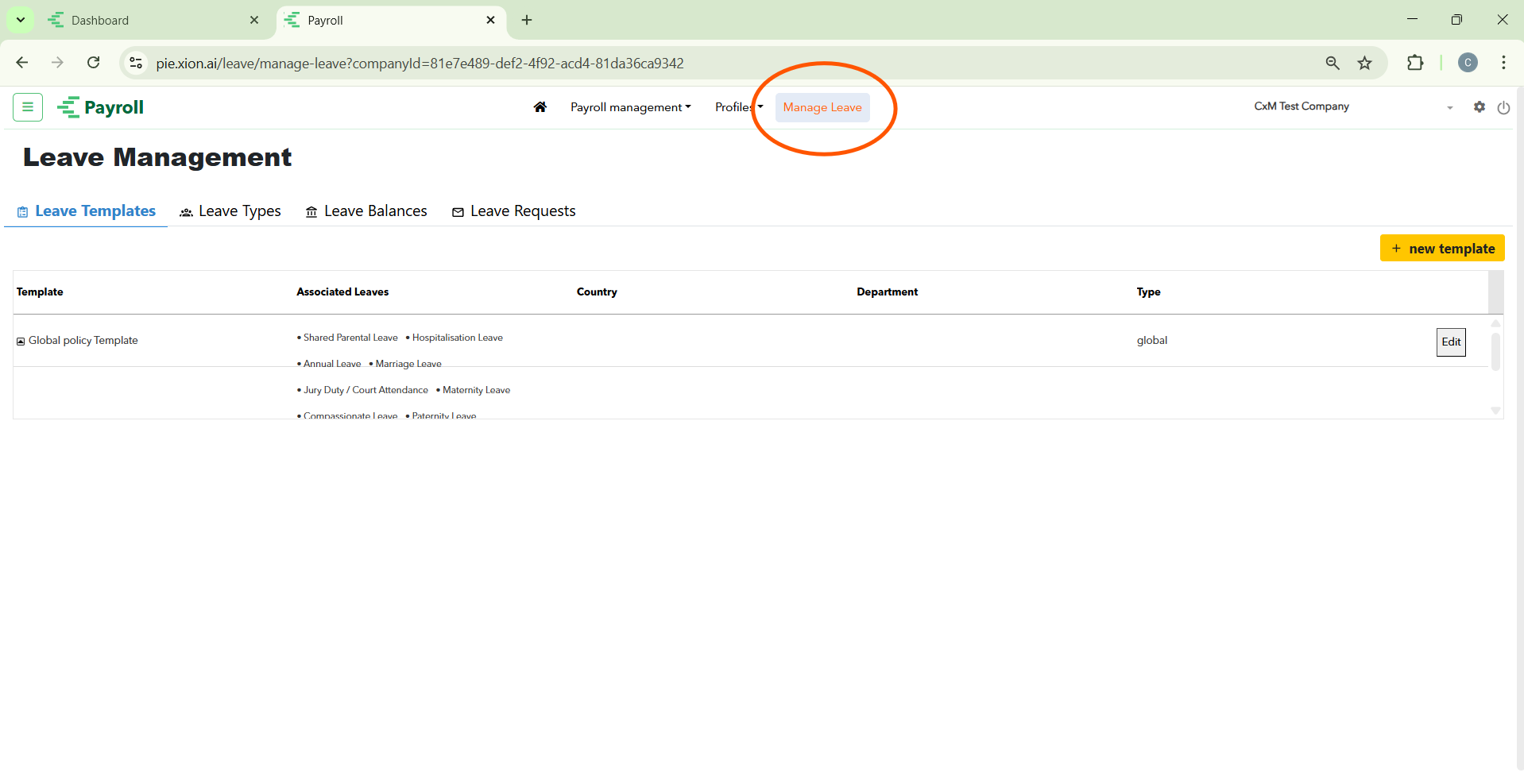
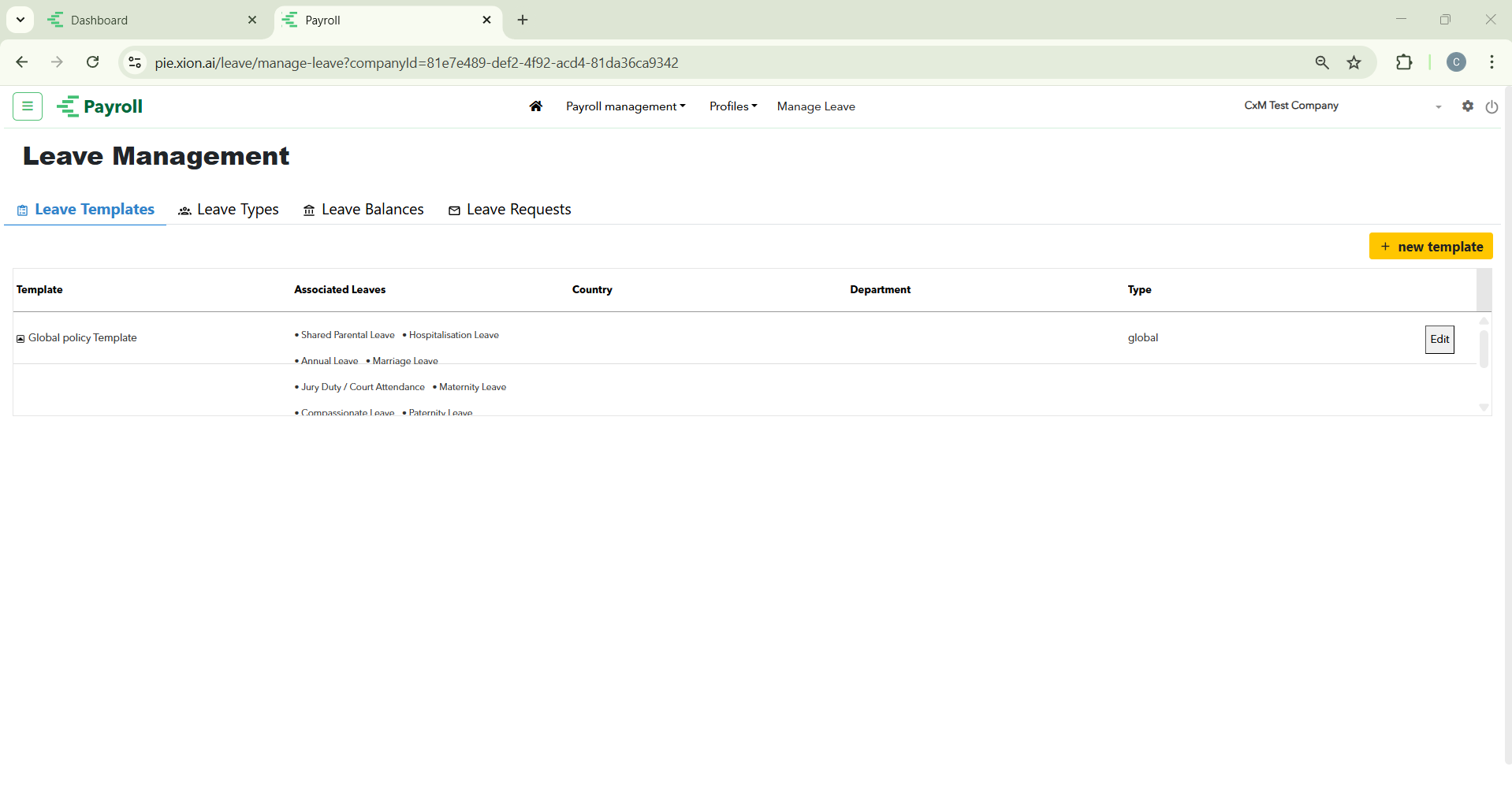
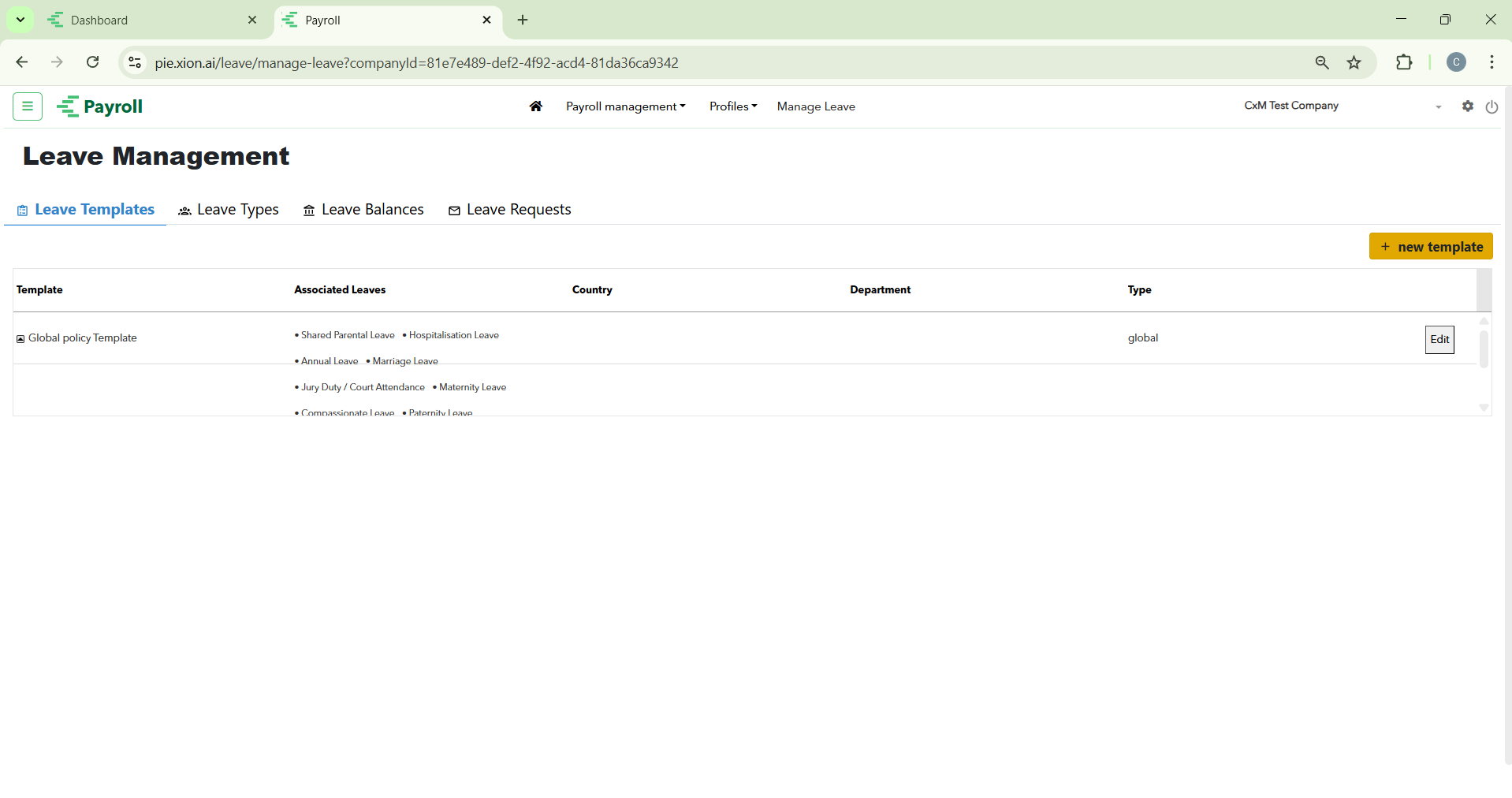
This is where you define your organisation’s overarching leave policies.
- Global Policy Template: Access and edit the standard template that includes common leave types such as Annual Leave, Shared Parental Leave, and Hospitalisation Leave.
- Policy Customisation: Click the Edit button on a template to adjust which leave types are associated with specific departments or countries.
- New Templates: Use the + New Template button to create unique policies for different employee groups (e.g., probationers vs. permanent staff).
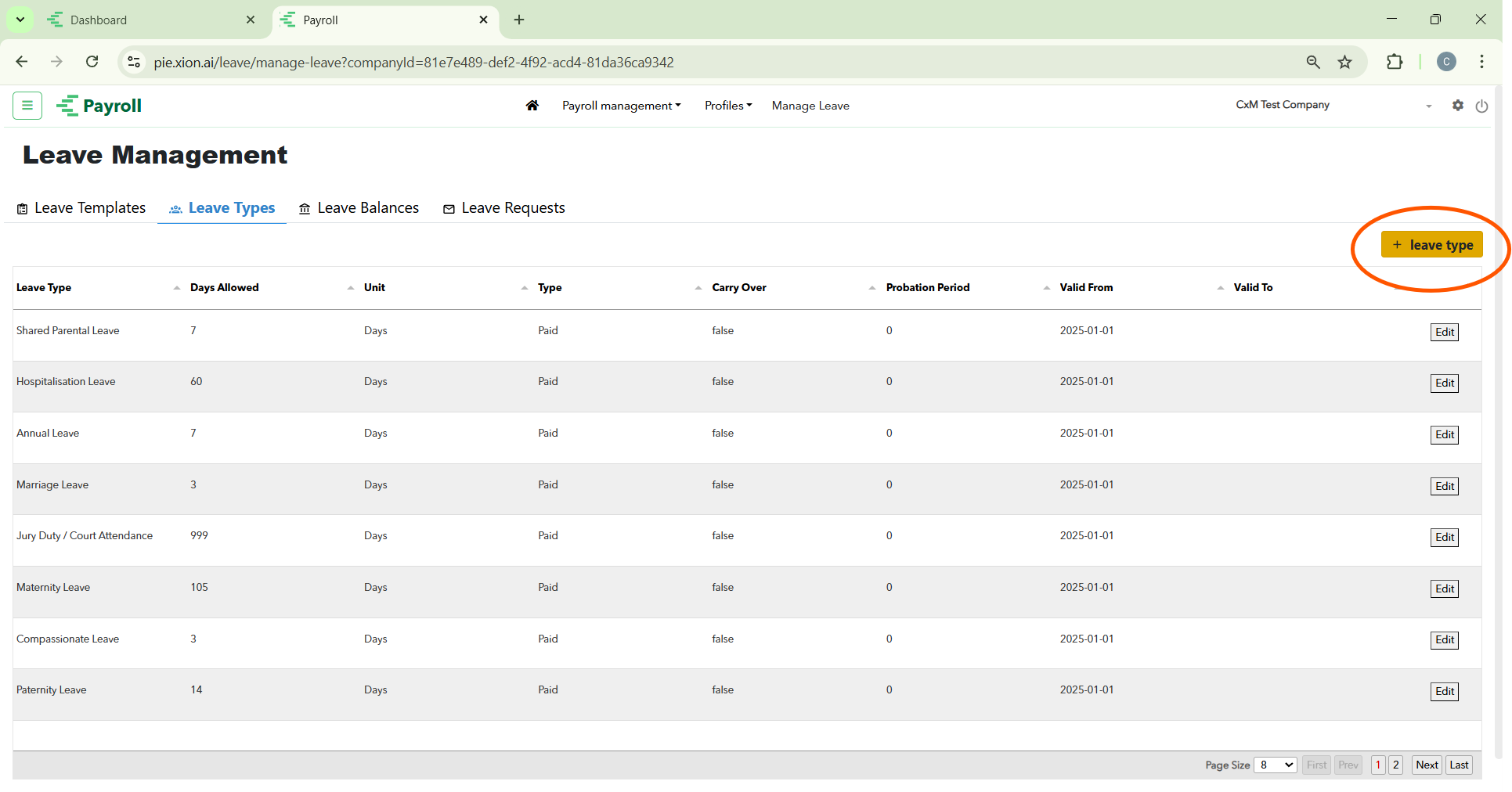
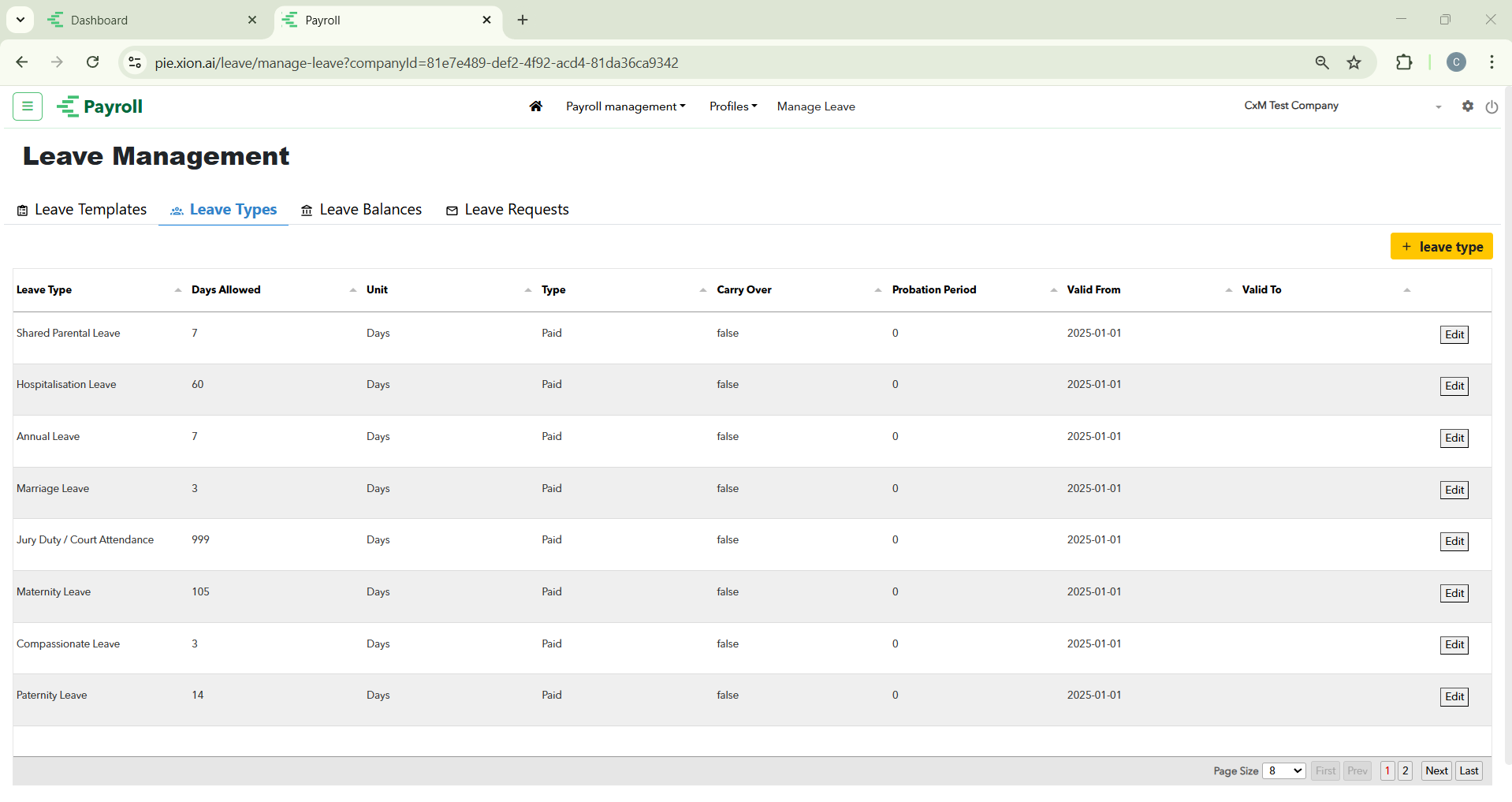
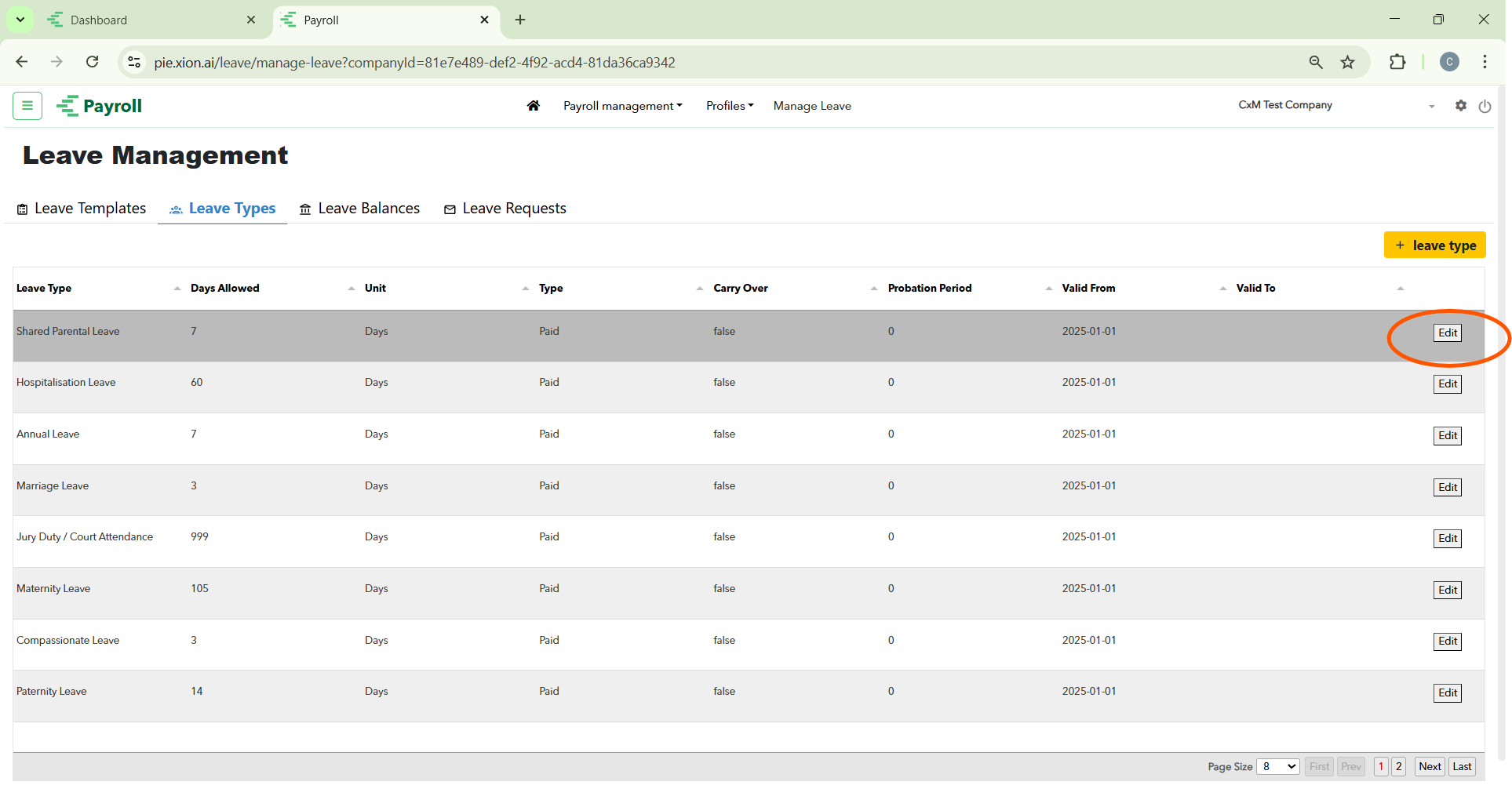
This tab provides a detailed breakdown of every leave category available in your system.
- Entitlements: View the Days Allowed for each category, such as 7 days for Marriage Leave or 14 days for Paternity Leave.
- Rules: Check whether a leave type is Paid or Unpaid, and monitor settings like Carry Over or Probation Period requirements.
- Validity: Track the Valid From and Valid To dates for specific leave entitlements to ensure they align with the current calendar year.
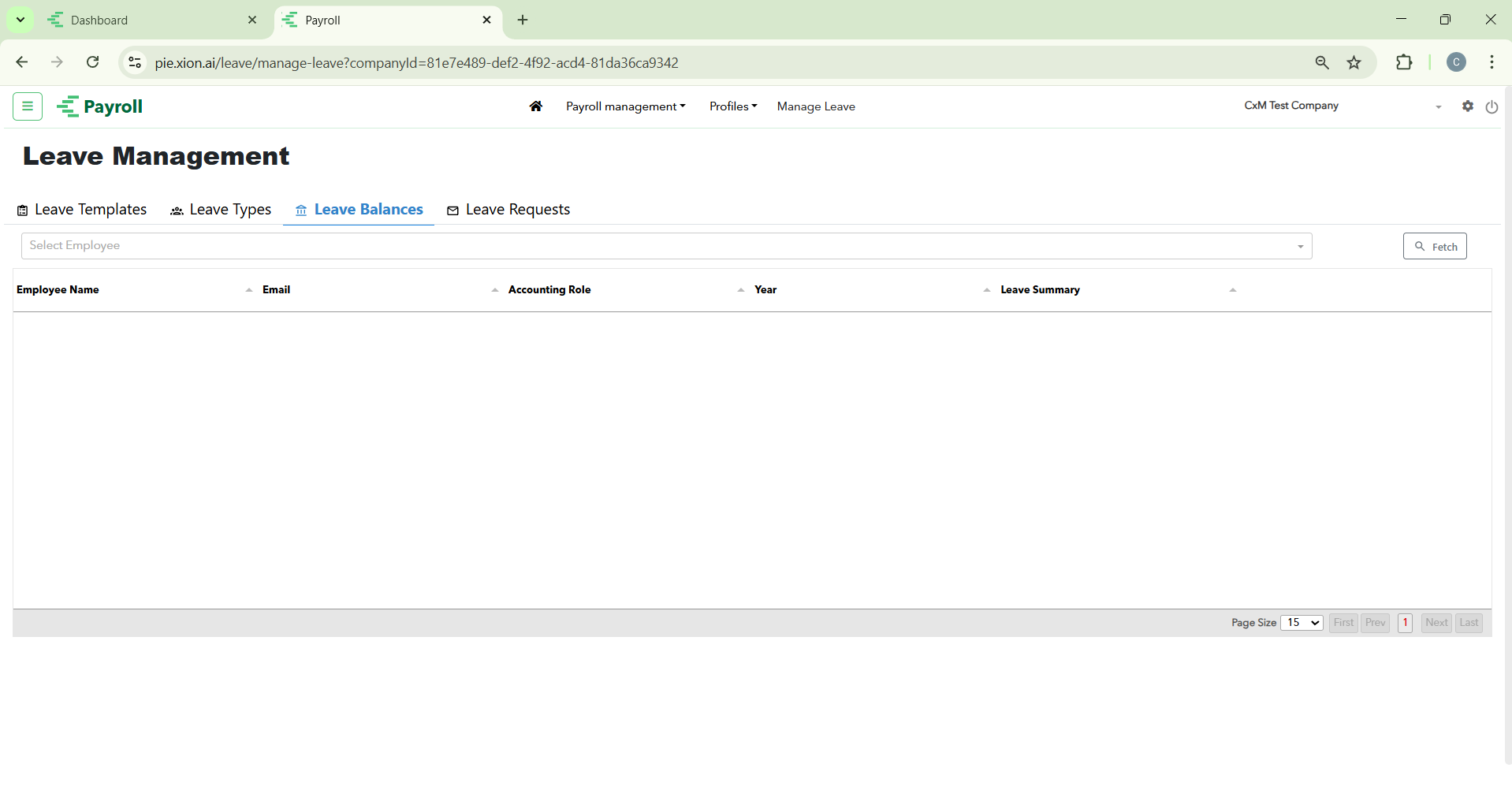
Use this section to audit exactly how much time-off your team has remaining.
- Employee Search: Use the Select Employee dropdown and click Fetch to pull up a specific individual’s records.
- Balance Summaries: View a real-time Leave Summary that tracks used versus remaining days for the current year.
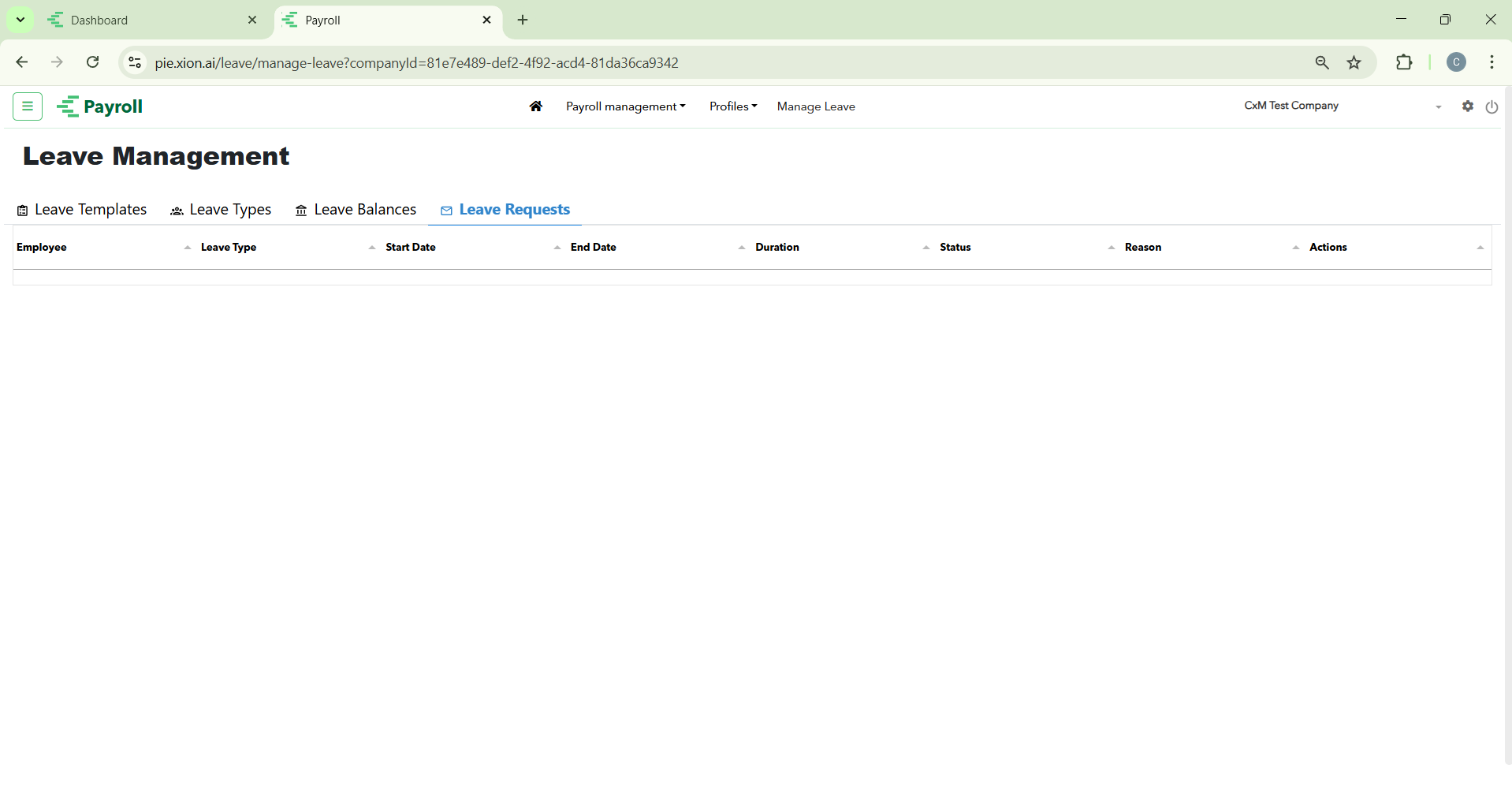
This is your operational queue for managing daily time-off applications.
- Reviewing Requests: Monitor the Employee Name, Leave Type, and the Start/End Dates for all incoming applications.
- Duration & Reason: Check the total Duration of the request and the Reason provided by the employee to help inform your decision.
- Taking Action: Use the Actions column to Approve or Reject requests. The Status column will update automatically once a decision is made.
Modifying Leave Templates
How do I modify an existing Leave Template?
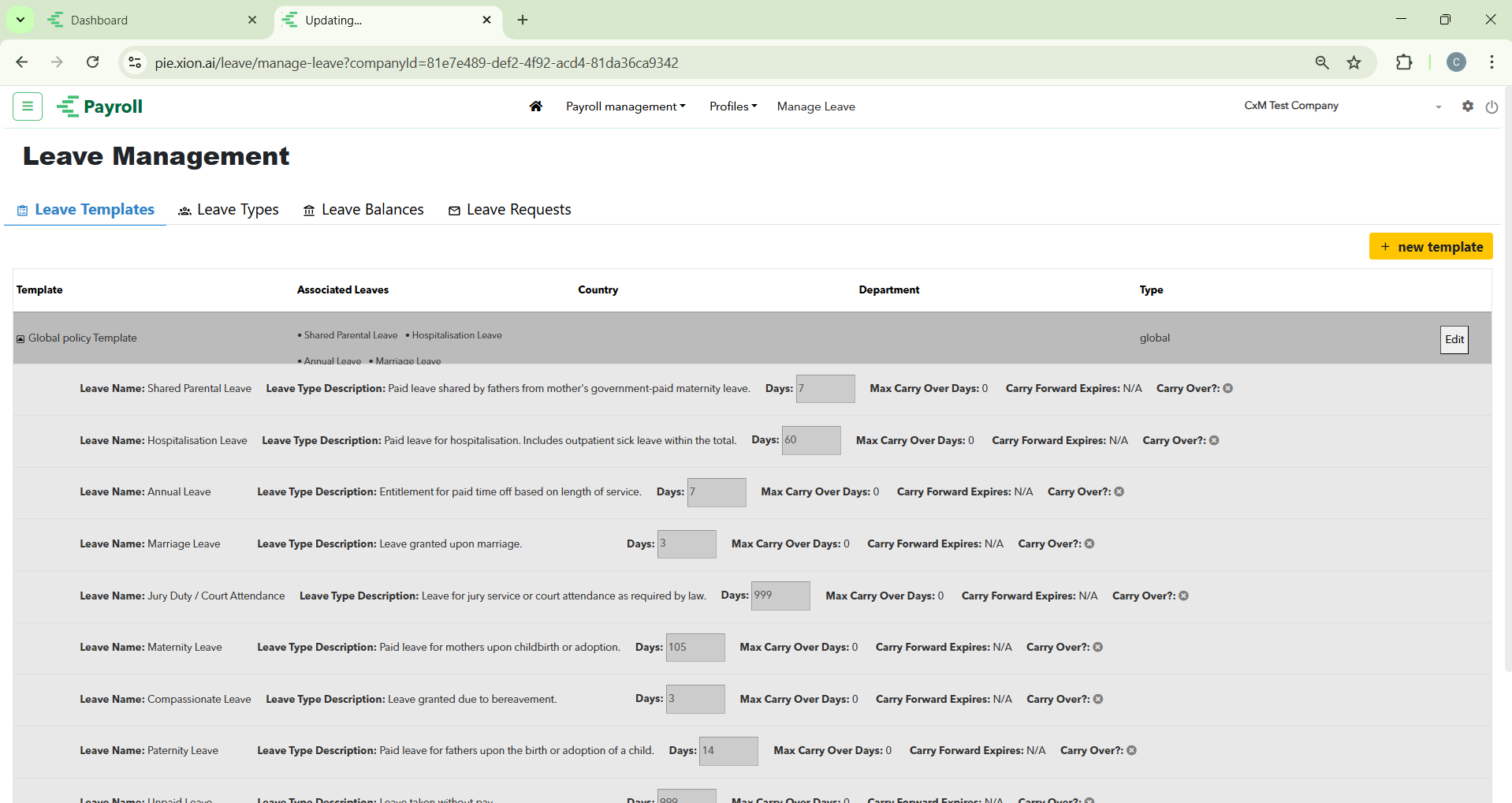
This interface provides granular control over how different types of time-off are handled for employees assigned to a specific template.
- Leave Type Descriptions: View the legal or organisational definition for each category, such as Shared Parental Leave (leave shared by fathers from the government-paid portion) or Hospitalisation Leave.
- Entitlement Adjustments (Days): Directly modify the number of Days allocated for each leave type (e.g., standard 7 days for Annual Leave).
- Carry Over Rules: Configure whether unused leave can be rolled over into the next calendar year by toggling the Carry Over? option.
- Limits and Expirations: Set a Max Carry Over Days limit to prevent excessive accrual and define when these carried-forward days will expire.
Adding a New Leave Template
How do I create a custom leave policy?
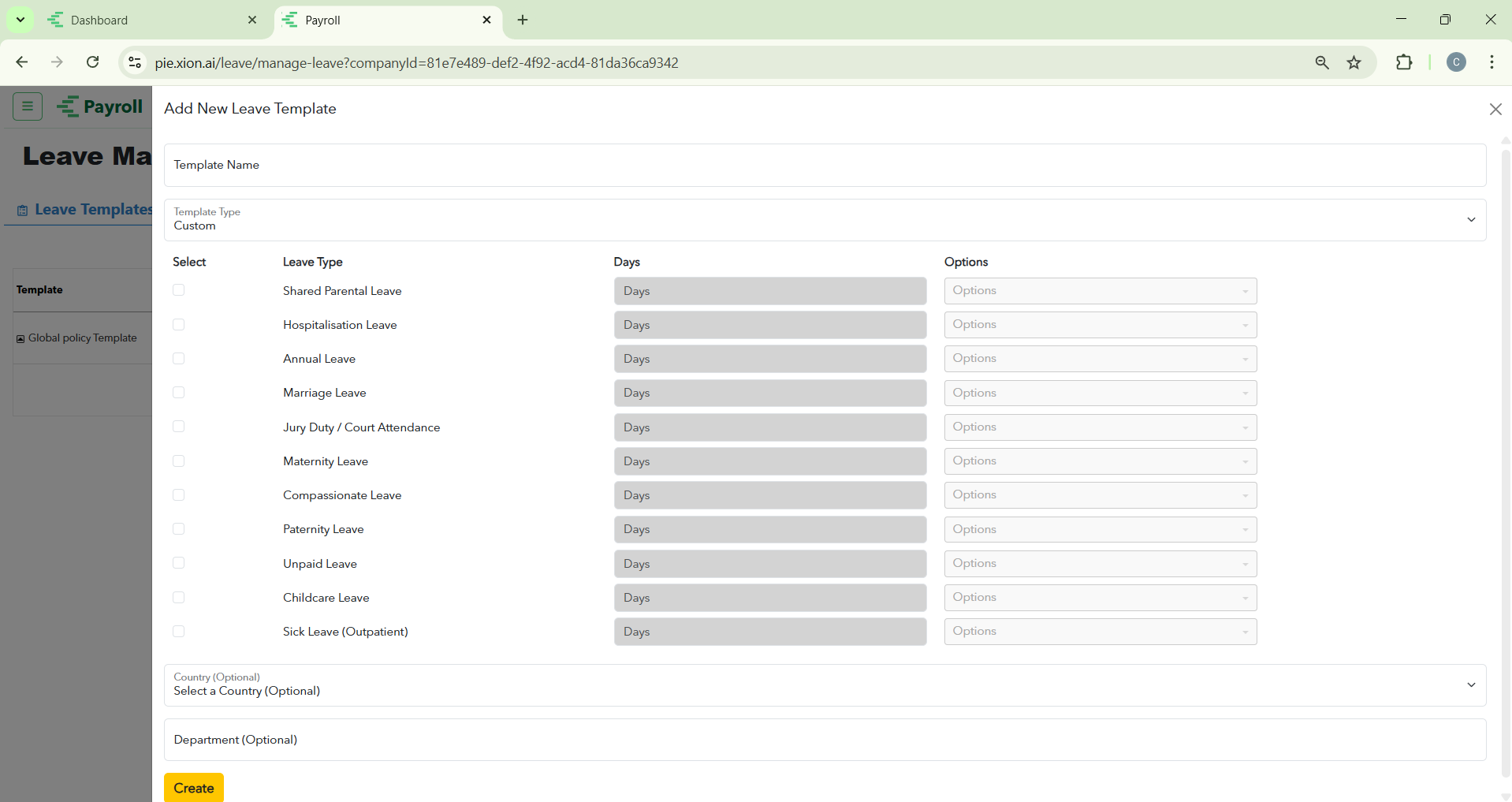
If your organisation requires different leave rules for specific groups, you can create a custom template.
- Initial Setup: Enter a unique Template Name (e.g., “Management Team”) and select the Template Type.
- Selecting Leave Types & Entitlements: Use the checkboxes to select which leave types apply and define the specific number of Days allowed for the year.
- Advanced Options: Use the Options dropdown for each leave type to configure specific rules like carry-over limits or prorated calculations.
- Setting Constraints (Optional): You can restrict the template to a specific Country (e.g., Singapore) or Department.
- Finalising: Click the yellow Create button to save. Your new template will now appear in the main Leave Templates list.
Managing Leave Type Details
How do I edit or create specific leave rules?
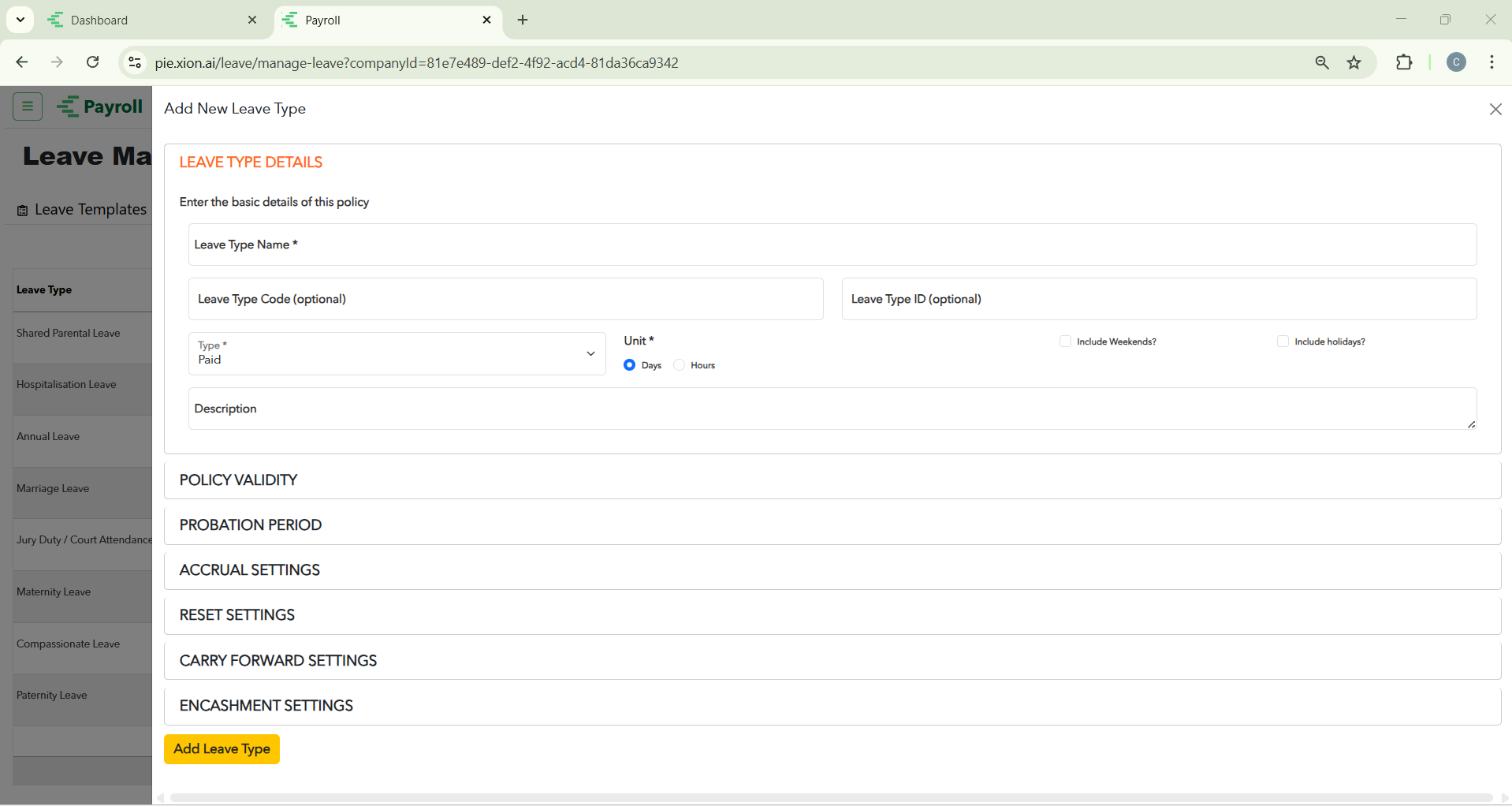
Whether you are updating an existing statutory leave or creating a unique company perk, the configuration interface defines exactly how that leave behaves.
Hover over the desired row and click the Edit button to open the configuration panel:
- Core Identity: View the Leave Type Name, Code (e.g., SPL), and unique ID.
- Unit of Measurement: Switch between tracking leave in Days or Hours.
- Inclusions: Toggle whether the leave should Include Weekends? or Include Holidays? in the total duration calculation.
- Descriptions: Maintain clear internal documentation of the leave’s purpose.
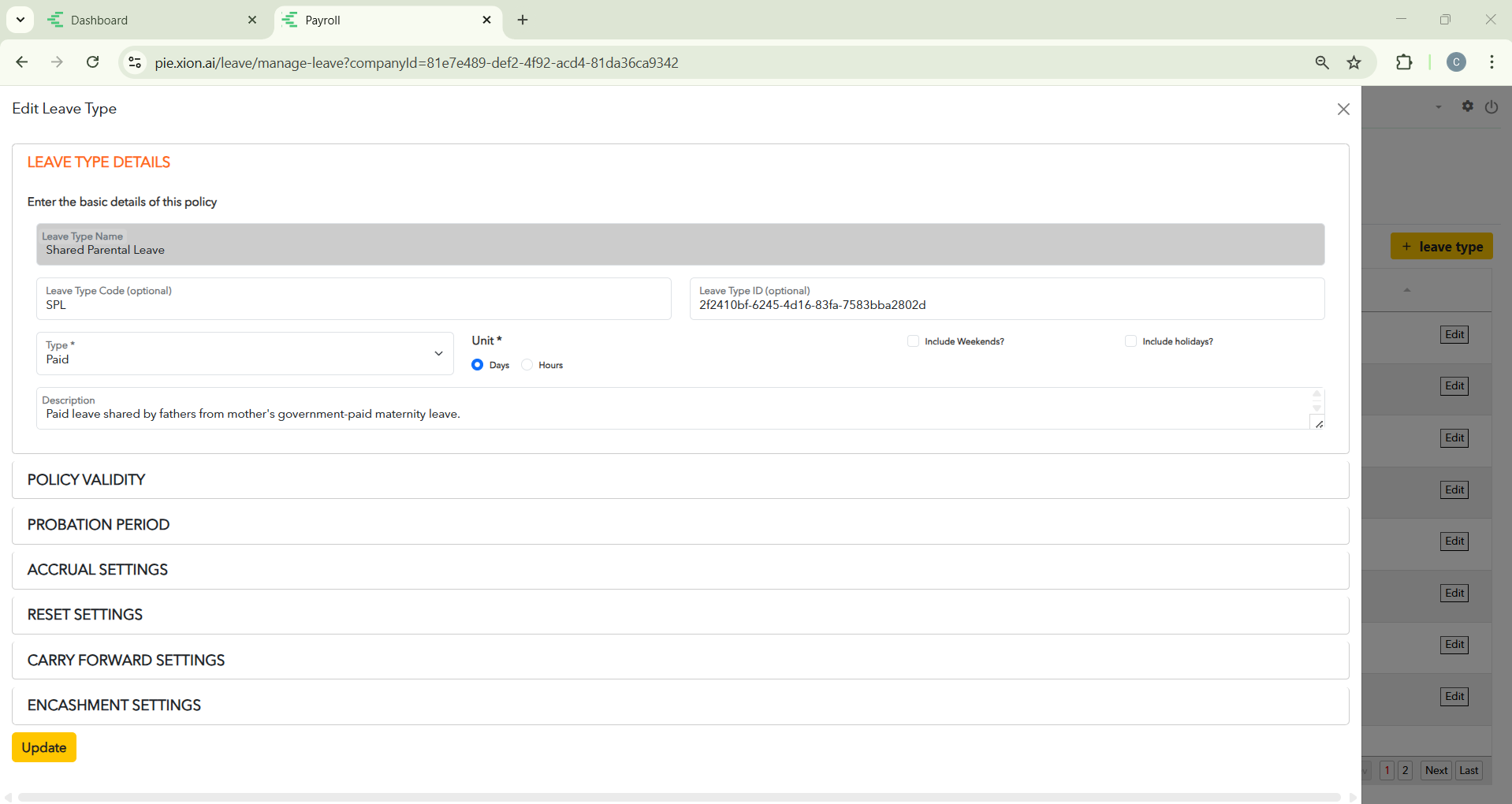
Click the yellow + leave type button to build a new category. Complete the following logic sections:
- Policy Validity: Define the active start and end dates.
- Probation Period: Set the months a new hire must complete before gaining access.
- Accrual Settings: Determine if leave is granted upfront or earned over time (e.g., 1.5 days per month).
- Carry Forward & Encashment: Define if unused days roll over or can be “cashed out” upon resignation.