×
Close
Find answers and get support
Mobile App
Access your workspace on the go
Reviewing and Completing Tasks on Mobile
How do I manage and complete my assigned tasks?
1
Locate Tasks
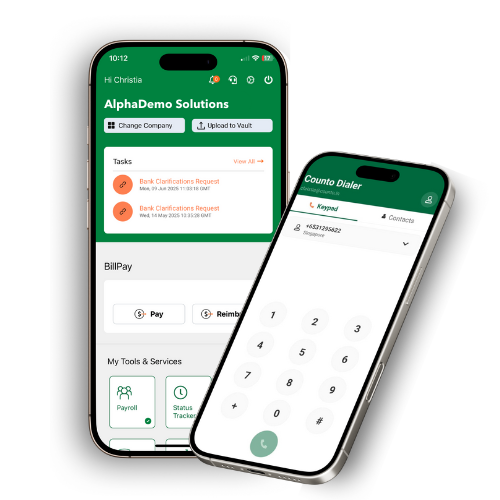
Locate the Tasks card and tap View All to see your full organizational task list.
Locate the Tasks card and tap View All to see your full organizational task list.
2
Select Task
Select a specific task (e.g., “Change of FYE”) to open the detailed view.
Select a specific task (e.g., “Change of FYE”) to open the detailed view.
3
Review & Action
Review the Task Instruction and tap the gold button Go to Review the Change Request to access the required link.
Review the Task Instruction and tap the gold button Go to Review the Change Request to access the required link.
4
Comment
If needed, add a Comment for your team in the provided field.
If needed, add a Comment for your team in the provided field.
5
Complete Task
To finish, you can tap Mark as Completed on the task page or use a quick swipe gesture on the list view to mark it done.
To finish, you can tap Mark as Completed on the task page or use a quick swipe gesture on the list view to mark it done.
Your tasks will be updated across all platforms instantly once marked as complete.