×
Close
Find answers and get support
Mobile App
Access your workspace on the go
Navigating the Mobile Home Screen
How do I understand and navigate the interface?
1
Company Profile
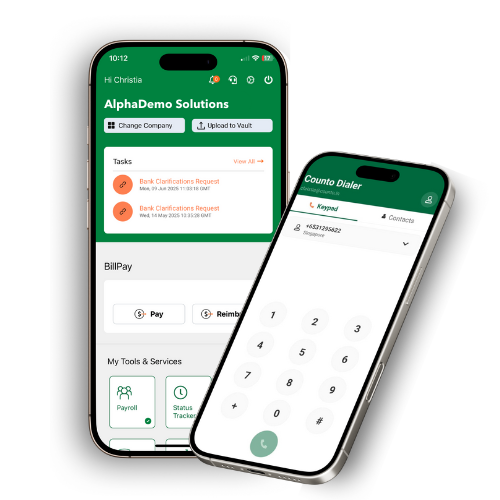
Check the upper left of the navigation bar to see your name and the company you are currently accessing.
Check the upper left of the navigation bar to see your name and the company you are currently accessing.
2
Switch Entities
Tap Change Company if you need to switch to a different business entity.
Tap Change Company if you need to switch to a different business entity.
3
Action Items
View Current Tasks at the top for items requiring your immediate action.
View Current Tasks at the top for items requiring your immediate action.
4
Tools & Payments
Access BillPay in the middle for payments and My Tools & Services at the bottom for personal management.
Access BillPay in the middle for payments and My Tools & Services at the bottom for personal management.
5
System Controls
Use the upper right icons to access Notifications, the Counto Dialer (support), Settings, and Logout.
Use the upper right icons to access Notifications, the Counto Dialer (support), Settings, and Logout.
The navigation bar is available on most screens for quick access to support and settings.